
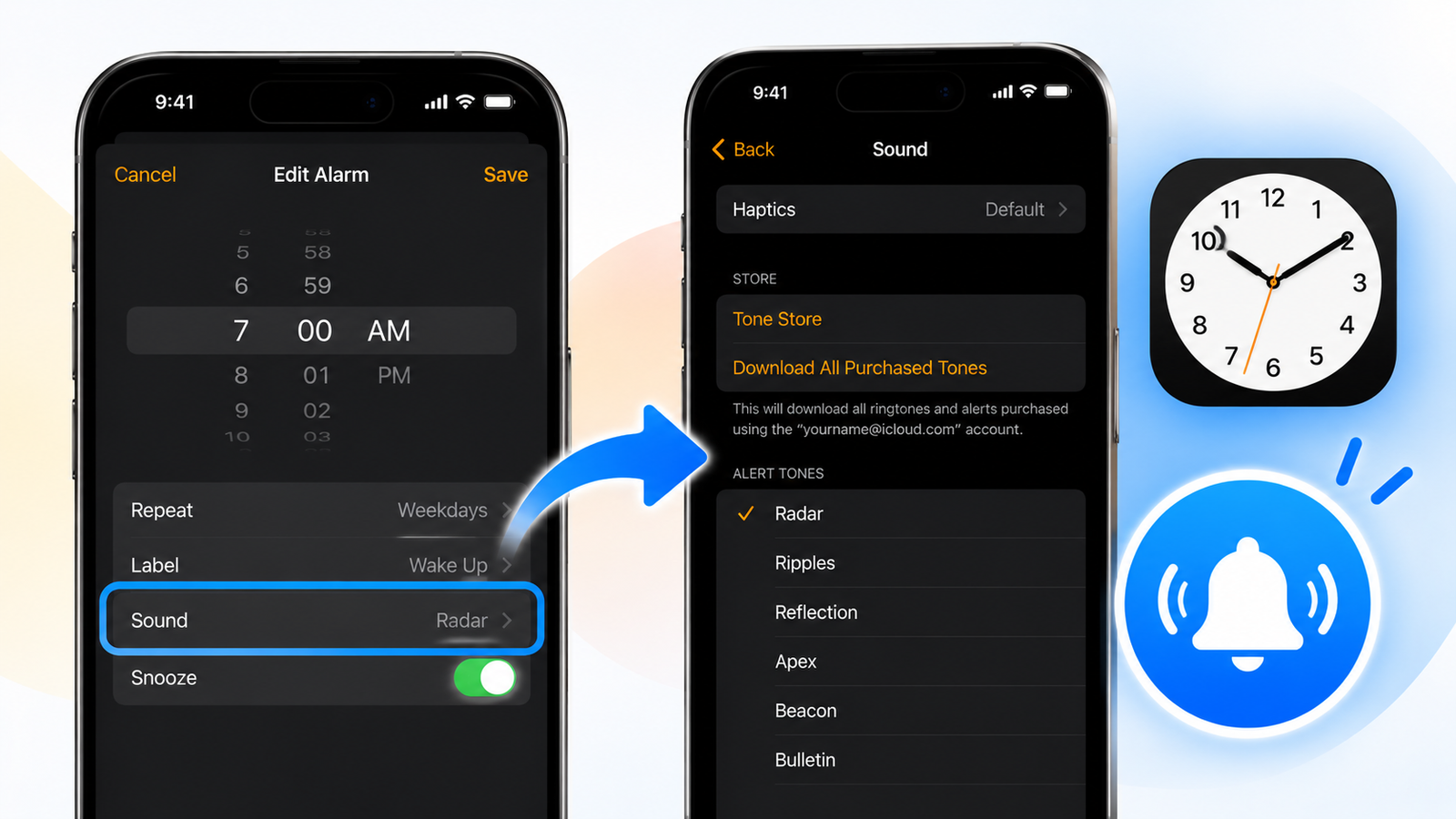
To change the alarm sound on an iPhone, open the Clock app, tap Alarms, tap Edit, choose the alarm, tap Sound, pick a new tone and tap Save. Each alarm keeps its own sound, so you need to repeat this for every alarm you want to change.
The steps below apply to iOS 26 and iOS 27 and are almost identical on older versions. They also cover using a song, fixing the volume and changing the separate wake-up alarm that belongs to your Sleep schedule, which lives in a different place and catches a lot of people out.
How to Change the Alarm Sound on iPhone for a Regular Alarm
- Open the Clock app.
- Tap the Alarms tab.
- Tap Edit in the top corner, then tap the alarm you want to change. You can also just tap the alarm itself.
- Tap Sound.
- Scroll through the list and tap a tone to hear a preview. A tick appears next to your choice.
- Tap Back, then tap Save.
Apple lists the same steps in its guide on how to set and change alarms on your iPhone.
The Classic entry at the bottom of the ringtone list opens the older tones, including the original Alarm sound many people still prefer.
How to Use a Song as Your iPhone Alarm Sound
On the same Sound screen you will see a Songs section above the ringtones.
- Follow the steps above until you reach Sound.
- Tap Pick a song.
- Choose a track from your music library, then tap Back and Save.
The song has to be in your Apple Music library and downloaded to the phone, or be music you bought or synced. Songs from Spotify, YouTube Music and other streaming apps cannot be selected here, because the Clock app can only see Apple’s own music library.
How to Set a Custom Tone or Ringtone as an Alarm Sound
Any custom ringtone on your iPhone shows up in the alarm’s Sound list, so adding a ringtone gives you a new alarm option at the same time. You have three ways to add one.
- Tone Store: tap Tone Store at the top of the Sound screen to buy a tone.
- Files app (iOS 26 and later): open a short audio file, tap the Share button and choose the option to use it as a ringtone.
- GarageBand: import or record a clip, then export it as a ringtone. This works on older iOS versions too.
How to Change the Sound of the Sleep Schedule Wake-Up Alarm
If you set a Sleep schedule in the Health app, your morning alarm is not a regular alarm, and its sound is changed separately.
- Open Clock and tap Alarms.
- At the top, under Sleep | Wake Up, tap Change.
- Scroll down to Alarm Options and tap Sounds & Haptics.
- Choose a sound, then tap Back and Done.
The wake-up alarm has its own set of gentler tones, and it does not offer the full ringtone list or songs.
How to Make Your iPhone Alarm Louder or Quieter
There is no volume control inside the Clock app. Alarms follow the ringer volume.
- Open Settings and tap Sounds & Haptics.
- Under Ringtone and Alerts, drag the slider.
- Turn on Change with Buttons if you want the side volume buttons to control it as well.
Be careful with that last switch. If it is on and you turn the volume down at night while watching a video, you may also be turning down tomorrow’s alarm.
Why Your iPhone Alarm Is Quiet or Silent and How to Fix It
- The sound is set to None. Open the alarm, tap Sound and make sure a tone is selected. An alarm set to None will only vibrate.
- The ringer volume is low. Check the Ringtone and Alerts slider described above.
- Attention Aware Features lowered it. On iPhones with Face ID, the alarm gets quieter when the phone sees you looking at it. You can turn this off in Settings, under Face ID & Passcode.
- You expected it from a speaker. Alarms always play through the iPhone’s own speaker. If headphones are connected, the alarm plays through both.
- You changed the time manually. Apple warns that adjusting the clock by hand in Settings can affect alarms. Leave Set Automatically turned on.
Silent mode and Do Not Disturb are not on this list for a reason. Neither one stops an alarm from sounding.
Can You Set One Default Alarm Sound for Every Alarm on iPhone?
No. iOS has no global setting for alarm tones. Every new alarm starts with the system default, and you change it alarm by alarm. The quickest workaround is to set up one alarm exactly the way you like it, then edit its time for different days instead of creating new ones.
Quick Answers About iPhone Alarm Sounds
Will my iPhone alarm go off in Silent mode?
Yes. Alarms ignore Silent mode and Focus modes, including Do Not Disturb.
Can I change how long snooze lasts?
On iOS 26 and later, yes. Open the alarm and adjust the snooze duration. On older versions snooze is fixed at nine minutes.
How do I change the timer sound?
That is a separate setting. In Clock, tap Timers, then tap When Timer Ends and choose a sound.
Can I make the alarm vibrate only?
Yes. Open the alarm, tap Sound, choose a vibration pattern under Haptics, then scroll to the bottom of the sound list and select None.
More iPhone guides: how to see recently deleted apps on iPhone and how to sync messages from iPhone to Mac.