
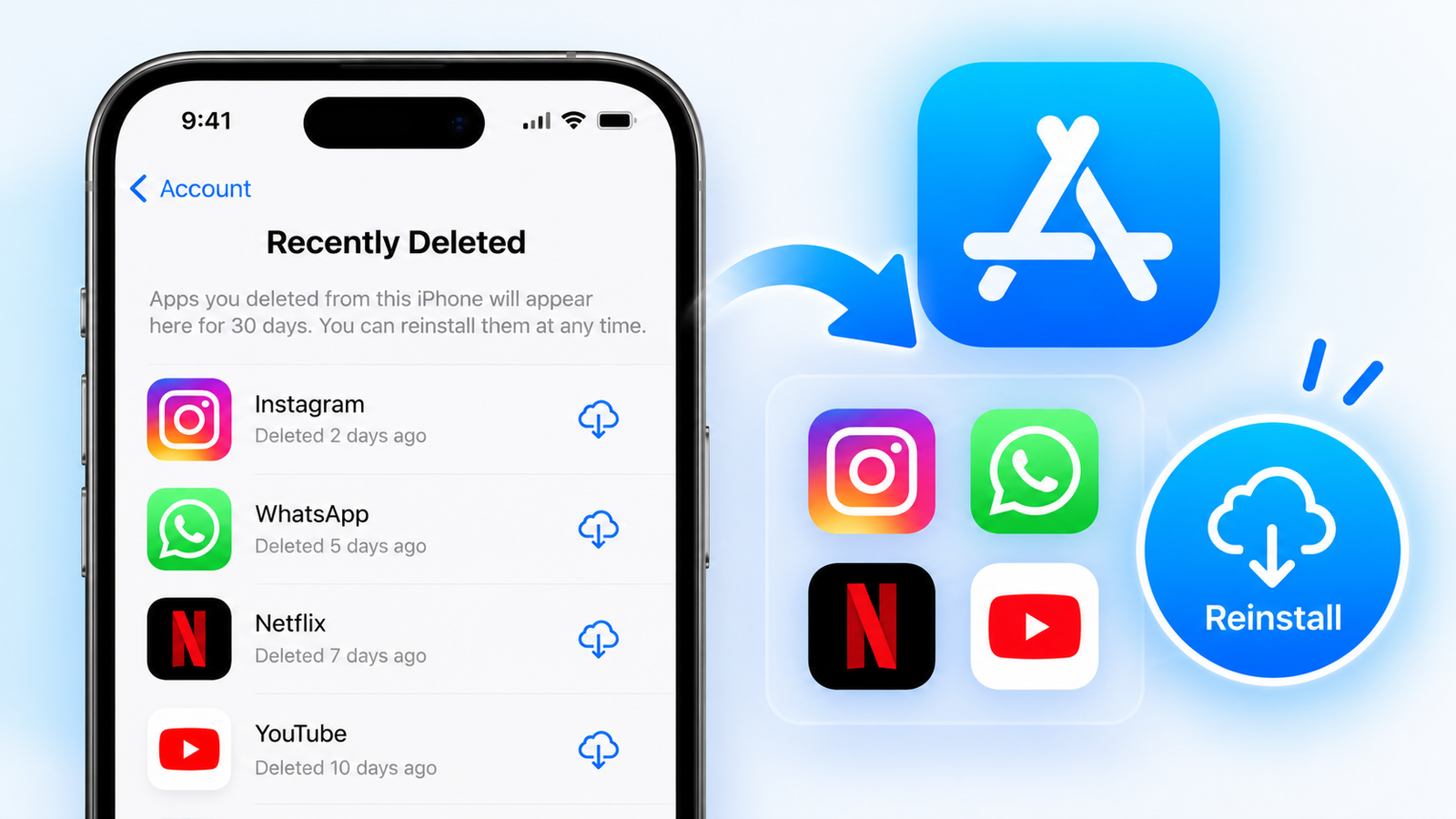
To see recently deleted apps on an iPhone, open the App Store, tap your account picture, tap Apps & Purchase History, tap Your Apps, then tap Not on this iPhone. That list shows every app you have downloaded with your Apple Account that is not currently installed, and you can reinstall any of them with one tap.
There is one catch worth knowing before you start. The iPhone has no “Recently Deleted” folder for apps the way it does for photos, and the list is ordered by when you first got each app, not by when you removed it. The methods below help you work around that.
How to See Recently Deleted Apps on iPhone Using the App Store
- Open the App Store.
- Tap your account picture or initials at the top of the screen.
- Tap Apps & Purchase History, then tap Your Apps. On older iOS versions this is labelled Apps or Purchased.
- Tap Not on this iPhone.
- Scroll the list or use the search field at the top to find the app.
- Tap the download button, the cloud with an arrow, to reinstall it.
These are the steps Apple gives in its support article on redownloading apps. Reinstalling an app you already own or downloaded for free does not cost anything.
Which Method Shows What: A Quick Guide to Finding Missing iPhone Apps
| Where to look | What it shows | Best for |
|---|---|---|
| App Store, Not on this iPhone | Every app you own that is not installed | Reinstalling a deleted app |
| App Library and Search | Apps still installed but removed from the Home Screen | Apps you think you deleted but did not |
| Settings, iPhone Storage | Offloaded apps, marked with a cloud icon | Apps iOS removed to save space |
| Screen Time | Apps used in the last days and weeks | Working out what was deleted recently |
| Hidden Purchases | Apps you chose to hide from your history | Apps missing from the main list |
Check Whether the App Was Only Removed From the Home Screen
Before you reinstall anything, make sure the app is really gone. When you press and hold an app and choose Remove App, iOS offers two options, and Remove from Home Screen keeps the app installed.
- Search: swipe down on the Home Screen and type the app’s name. If it appears with its icon, it is still installed.
- App Library: swipe left past your last Home Screen page and use the search bar at the top.
- Hidden folder: on iOS 18 and later, scroll to the bottom of the App Library and open the Hidden folder with Face ID. Apps you hid and locked end up there.
To put an app back on the Home Screen, press and hold it in the App Library and choose Add to Home Screen.
Find Offloaded Apps That iOS Removed to Save Storage
If Offload Unused Apps is turned on, your iPhone quietly removes apps you have not opened for a while and keeps their data. Offloaded apps stay on your Home Screen with a small cloud icon next to the name.
- Open Settings and tap General.
- Tap iPhone Storage.
- Look for apps marked as offloaded, tap one, then tap Reinstall App.
Tapping the app’s icon on the Home Screen does the same thing.
Use Screen Time to Work Out Which Apps Were Deleted Recently
Because the App Store list is not sorted by deletion date, Screen Time is the closest thing to a recent history.
- Open Settings and tap Screen Time.
- Tap See All App & Website Activity.
- Switch between Day and Week, and scroll to the list of most used apps.
Apps that were used during that period still appear here by name even after they have been removed. Compare the list with your Home Screen and you can usually spot what is missing. This only works if Screen Time was already turned on.
What to Do If a Deleted App Is Missing From Your App Store List
- It may be hidden. In the App Store, tap your account picture, tap your name at the top, then look for Hidden Purchases and unhide the app.
- It may belong to another account. Apps downloaded with a different Apple Account only appear when you are signed in to that account.
- A family member may have bought it. With Family Sharing, tap their name under Your Apps to see their purchases.
- It may have been pulled from the App Store. Developers and Apple sometimes remove apps, and those can no longer be downloaded.
Will Your Data Come Back When You Reinstall a Deleted iPhone App?
It depends on where the app kept its data.
- Apps with an account, such as social, banking, email and streaming apps, restore everything when you sign in again.
- Apps that sync with iCloud usually bring their data back automatically.
- Apps that stored data only on the phone, including some games and note apps, start from scratch unless you restore the whole iPhone from a backup made before the deletion.
Deleting an app also does not cancel a subscription. You can check active ones under your account in the App Store, in Subscriptions.
Frequently Asked Questions About Deleted Apps on iPhone
Can I see the date an app was deleted from my iPhone?
No. iOS does not record or show when an app was deleted. Screen Time activity is the only indirect clue.
Does the iPhone have a Recently Deleted folder for apps?
No. That folder exists in Photos, Notes, Files and Messages, but not for apps.
Can I see apps deleted from my child’s iPhone?
With Family Sharing you can see apps downloaded with your child’s account under Your Apps in the App Store, and Screen Time shows their recent app activity.
Do I have to pay again to reinstall a paid app?
No, as long as you use the same Apple Account that bought it and the app is still available.
More iPhone guides: how to sync messages from iPhone to Mac and how to change the alarm sound on iPhone.
2 thoughts on “How to See Recently Deleted Apps on iPhone and Reinstall Them”
Comments are closed.