
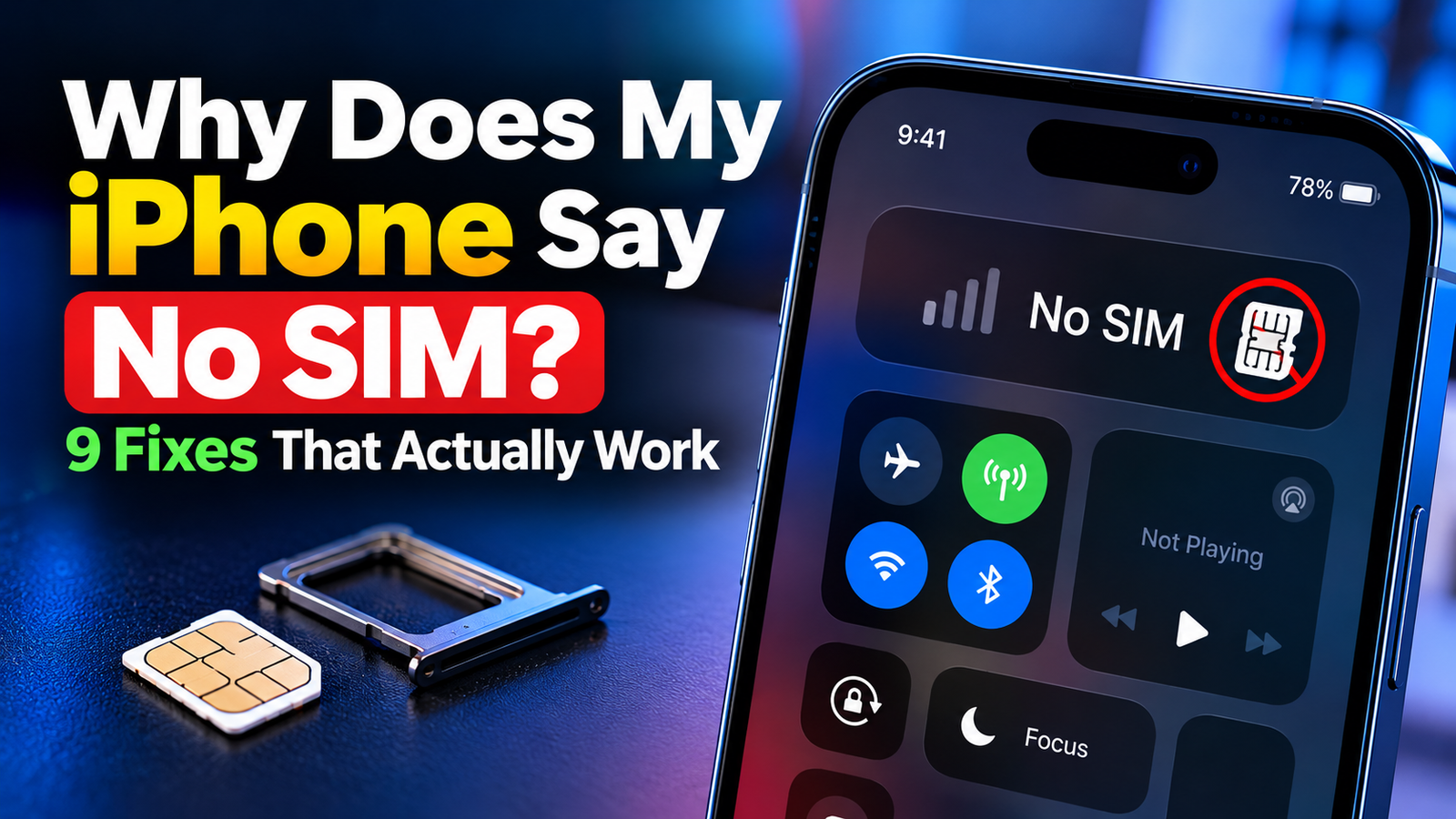
Your iPhone says No SIM when it cannot read a SIM card or eSIM, and the usual causes are a SIM that has shifted in its tray, a temporary software glitch, outdated carrier settings, or a plan that is no longer active. Most cases are fixed in a few minutes without a trip to a store.
Work through the fixes below in order. They start with the quickest and safest, and they cover both physical SIM cards and eSIM.
What the No SIM Message on an iPhone Actually Means
You might see No SIM, Invalid SIM, No SIM Card Installed or SIM Failure. They all mean the same thing: the phone is not detecting a working SIM, so it cannot connect to your carrier. Calls, texts and mobile data stop, although Wi-Fi keeps working.
This is different from SOS or No Service, which mean the SIM is fine but there is no signal from your carrier where you are.
Why Does My iPhone Say No SIM All of a Sudden? Common Causes
- The SIM card moved slightly after a drop or knock.
- A software hiccup after an iOS update or restart.
- Carrier settings are out of date.
- Your plan was suspended, cancelled or moved to another device.
- The SIM card is worn, scratched or damaged.
- The eSIM was removed or did not transfer properly to a new phone.
- Water or impact damaged the SIM reader inside the phone.
How to Fix No SIM on an iPhone: Start With These Quick Steps
1. Turn Airplane Mode on and off
Open Control Center, tap the airplane icon, wait about 15 seconds and tap it again. This forces the phone to reconnect to the network.
2. Restart your iPhone
A restart clears most temporary faults. Hold the side button and either volume button, slide to power off, wait 30 seconds and turn it back on.
3. Check that your plan is active
Apple lists this first for a reason. If a bill was missed, the line was ported, or the SIM was activated on another phone, your SIM will stop working. Log in to your carrier account or call them from another phone.
4. Update your carrier settings
Connect to Wi-Fi, then go to Settings, General, About and wait on that screen for a few seconds. If an update is available, a prompt appears. Tap Update.
5. Update iOS
Go to Settings, General, Software Update and install anything pending. Apple occasionally fixes cellular bugs in point releases.
Fixes for iPhones With a Physical SIM Card
6. Remove and reseat the SIM card
- Push a SIM eject tool or a straightened paperclip into the small hole on the SIM tray.
- Take the card out and check it for scratches, dirt or a bent edge.
- Wipe the gold contacts gently with a soft, dry cloth.
- Put the card back the right way round and push the tray in until it sits flush.
Use the tray that came with your phone. Apple notes that a tray from a different model or manufacturer might not fit properly.
7. Try a different SIM card or a different phone
Put your SIM into another unlocked phone. If it fails there too, the card is faulty and your carrier can replace it, often free. If another SIM works in your iPhone, you have the same answer. If no SIM works in your iPhone, the phone needs service.
Fixes for iPhones That Use eSIM
iPhone 14 and later models sold in the United States have no SIM tray at all, and the iPhone Air is eSIM only everywhere. We cover that in our iPhone Air vs 17 Pro comparison.
8. Check that your eSIM line is turned on
Go to Settings, then Cellular, tap your plan and make sure Turn On This Line is enabled. If no plan is listed, the eSIM is no longer on the phone.
Do not delete an eSIM as a troubleshooting step. Once removed, it usually cannot be restored without your carrier issuing a new one. If your plan is missing or will not activate, contact your carrier. Apple’s guide to setting up an eSIM on iPhone shows the ways a carrier can send it to you.
If Nothing Has Worked: Reset Network Settings
9. Reset network settings
Go to Settings, General, Transfer or Reset iPhone, Reset, then Reset Network Settings. This does not erase your apps, photos or eSIM, but it does forget saved Wi-Fi passwords, VPN settings and paired Bluetooth devices, so have your Wi-Fi password ready.
When a No SIM Error Means a Hardware Problem
Book a repair if any of these are true:
- The message started straight after the phone was dropped or got wet.
- No SIM card works in the phone, but your SIM works elsewhere.
- The error comes and goes when you press on the back or side of the phone.
- You have completed every step above and your carrier confirms the plan is active.
Apple’s own checklist is in its support article If you see Invalid SIM or No SIM on your iPhone, and it ends with the same advice: contact Apple for service.
Frequently Asked Questions About the iPhone No SIM Error
Can I still use my iPhone when it says No SIM?
Yes, over Wi-Fi. Apps, browsing, and iMessage and FaceTime through your Apple Account email can work, but phone calls, SMS and mobile data will not.
Will resetting network settings delete my eSIM?
No. Resetting network settings keeps your eSIM. Only choosing Delete eSIM, or erasing the phone without keeping the eSIM, removes it.
Why does my iPhone say No SIM after an update?
Usually a temporary glitch. Restart the phone, update carrier settings, and reseat the SIM if you have one.
Does a No SIM error mean my iPhone is locked to a carrier?
Not necessarily. To check, go to Settings, General, About and look for Carrier Lock. “No SIM restrictions” means the phone is unlocked.
More iPhone help: how to sync messages from iPhone to Mac and how to see recently deleted apps on iPhone.