
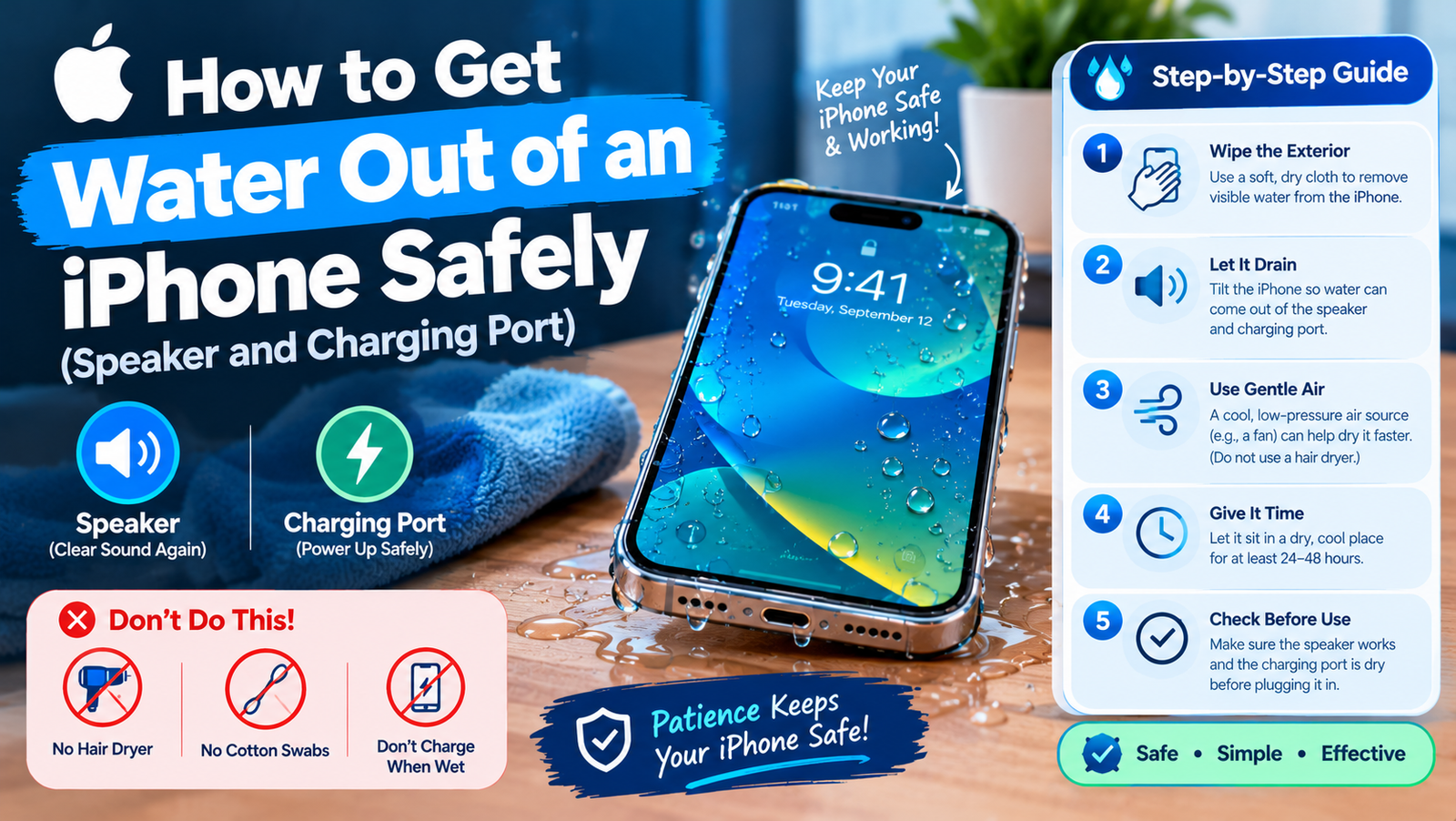
To get water out of an iPhone, wipe it with a soft cloth, hold it with the charging port facing down and tap it gently against your hand, then leave it in a dry place with moving air. Do not charge it until it is dry, and do not use rice, a hair dryer or anything pushed into the port.
That is Apple’s own advice, and it is worth following closely, because the wrong fix does more harm than the water did. Here is the full process, including what to do about a muffled speaker and the liquid-detection warning.
What to Do in the First Minute After Your iPhone Gets Wet
- Take it out of the water and unplug any cable or accessory.
- If the liquid was not clean water, such as sea water, pool water, soda or coffee, rinse the wet area briefly with tap water. Salt and sugar cause more damage than water as they dry.
- Wipe it down with a soft, lint-free cloth, like a glasses cloth.
- Remove the case so trapped water can escape.
- Do not plug it in.
How to Get Water Out of the iPhone Charging Port
- Hold the iPhone with the charging port pointing down.
- Tap it gently against your palm a few times to shake out the excess.
- Leave it in a dry spot with some airflow. Placing it in front of a fan blowing cool air straight at the port helps.
- Wait at least 30 minutes before you try charging.
If the port is still wet, give it longer. Apple says it can take up to a day to dry completely.
How to Get Water Out of iPhone Speakers When the Sound Is Muffled
Muffled or crackly audio after a soaking usually means water is sitting behind the speaker mesh. Apple’s method is simple: place the iPhone speaker side down on a lint-free cloth and see whether water drips out. Then give it time. The sound normally returns to normal as the water evaporates.
Do “water eject” shortcuts and sound apps work?
You will find Siri shortcuts and apps that play a low-frequency tone to vibrate water out of the speaker. This is the same idea as the Water Lock feature on Apple Watch, but Apple does not offer or recommend it for iPhone. A tone at moderate volume is unlikely to hurt, and some people find it speeds things up. It only helps with the speaker, though. It does nothing for water in the charging port or inside the phone, so it does not replace drying time.
What Not to Do When Your iPhone Has Water in It
- Do not put it in rice. Apple specifically warns against this, because small particles of rice can get into the phone and damage it.
- Do not use a hair dryer, oven, radiator or any other heat source.
- Do not blast it with compressed air. That can push water further in.
- Do not insert a cotton swab, paper towel or toothpick into the charging port.
- Do not charge it while it is wet.
What the “Liquid Detected” Alert Means and When You Can Charge Again
If you plug in a cable while the port is wet, an iPhone XS or later shows a warning that liquid has been detected in the connector. Charging and accessories are blocked to protect the pins from corrosion.
- Unplug the cable at both ends.
- Dry the port using the steps above and try again after 30 minutes.
- If the alert returns, leave the phone somewhere dry with airflow for up to 24 hours.
If you urgently need power, wireless charging is the safe option. Make sure the back of the phone is dry and put it on a MagSafe or Qi charger. The alert also has an Emergency Override option for wired charging, which Apple includes for real emergencies only. The details are in Apple’s article If you see a liquid-detection alert on your iPhone.
If you never saw an alert but the phone was properly wet, Apple’s general guidance is to wait at least five hours before charging with a cable.
How Water Resistant Is Your iPhone? Ratings by Model
| iPhone models | Rating | Tested depth and time |
|---|---|---|
| iPhone 12 and later, including iPhone 17, iPhone Air and 16e | IP68 | Up to 6 metres for 30 minutes |
| iPhone 11 Pro and 11 Pro Max | IP68 | Up to 4 metres for 30 minutes |
| iPhone 11, XS and XS Max | IP68 | Up to 2 metres for 30 minutes |
| iPhone 7 to iPhone X, XR and iPhone SE (2nd and 3rd generation) | IP67 | Up to 1 metre for 30 minutes |
Two things to keep in mind. These ratings come from lab tests in still, fresh water, and resistance weakens with age, drops and repairs. Apple also states that liquid damage is not covered by its warranty. The full list is in Apple’s guide to splash, water and dust resistance of iPhone. If you are choosing between current models, our iPhone 17 vs 17 Pro comparison covers what else separates them.
Signs of Water Damage That Mean Your iPhone Needs a Repair
- The liquid-detection alert keeps appearing after a full day of drying.
- The screen shows lines, dark patches or fog under the glass.
- The camera lens is misted on the inside.
- The phone gets hot, restarts by itself or will not turn on.
- The speaker or microphone is still muffled after two days.
If the phone was in salt water or stayed submerged for a long time, get it checked even if it seems fine. Corrosion can show up days later. Back up your data as soon as the phone is working.
Frequently Asked Questions About Water in an iPhone
How long does it take for an iPhone to dry out?
The charging port often dries in 30 minutes to a few hours. Apple says to allow up to a day if the liquid alert keeps showing.
Can I use my iPhone while it dries?
Yes, if it is working normally. Just do not charge it with a cable or connect accessories until it is dry.
Does putting an iPhone in rice work?
No. Open air with a fan dries it at least as well, and rice can leave dust and grains in the port.
Is my iPhone safe to take swimming?
Apple advises against it. The rating is for accidents, not for swimming, showers, saunas or water sports.
More iPhone help: how to change the alarm sound on iPhone.