
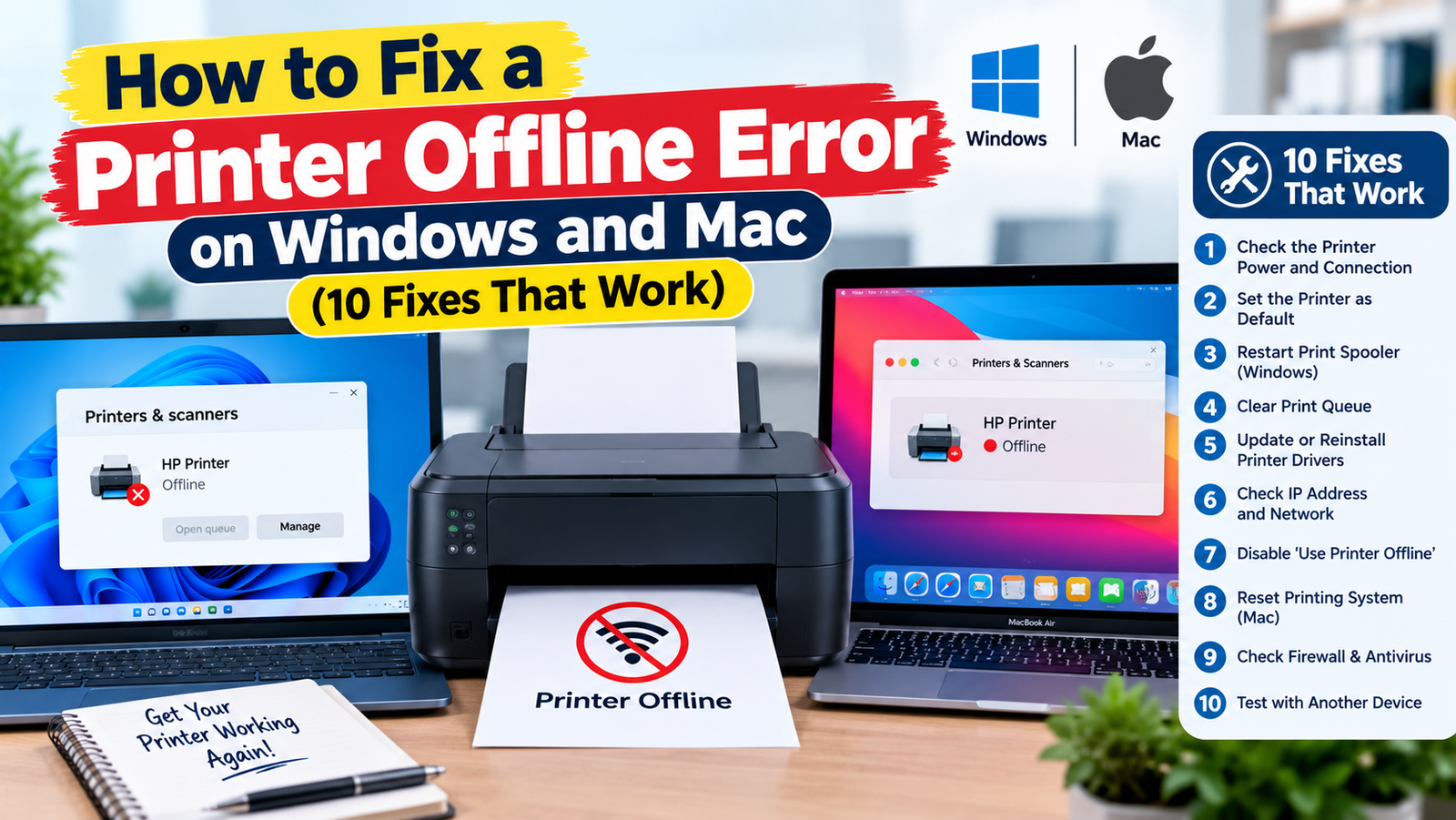
To fix a printer that says “offline,” restart the printer and your computer, make sure both are on the same Wi-Fi network (or the USB cable is firmly connected), turn off the “Use Printer Offline” option, and clear any stuck print jobs. Those four steps solve most offline errors in a few minutes. If the problem keeps coming back, the cause is usually a changing IP address, an outdated driver or a stuck print spooler, all covered below.
Work through the fixes in order. Start simple and stop as soon as your printer shows “Ready” or “Idle” again.
Why Does My Printer Keep Saying Offline?
“Offline” simply means your computer cannot talk to the printer right now. Common reasons include:
- The printer is asleep, turned off or showing an error such as a paper jam
- The printer and computer are on different Wi-Fi networks or bands
- The router gave the printer a new IP address
- A stuck job is blocking the print queue
- Windows has the printer set to “Use Printer Offline”
- A VPN or firewall is blocking local network traffic
- The driver is outdated or corrupted
Quick Fixes for Any Printer (Try These First)
1. Power cycle everything
Turn off the printer, unplug it for 30 seconds, and plug it back in. Restart your computer too. Microsoft recommends this as one of the first steps in its printer troubleshooting guide.
2. Check the printer’s own screen
Look for paper jams, empty ink, an open cover or a Wi-Fi warning. Many printers report “offline” when they are actually stuck on an error.
3. Confirm the connection
- USB: reseat the cable at both ends and try a different port.
- Wi-Fi: print a network configuration page from the printer menu and confirm it is connected to the same network as your computer. Some printers only support 2.4 GHz, so a laptop on a separate 5 GHz network name may not see them.
4. Pause your VPN
Many VPNs block access to devices on your local network. Disconnect it briefly and print again. If that fixes it, look for a “local network sharing” or “LAN access” setting in your VPN app. Our guide on VPN connection problems covers related settings.
How to Fix Printer Offline on Windows 11
5. Turn off “Use Printer Offline”
- Open Settings > Bluetooth & devices > Printers & scanners.
- Select your printer and click Open print queue.
- Click the three dots (or the Printer menu) and untick Use Printer Offline if it is checked.
6. Clear the print queue
In the same print queue window, cancel every pending document. If jobs will not delete, use the spooler fix below.
7. Run the printer troubleshooter
Open the Get Help app, search for the printer troubleshooter and follow the prompts. It can restart services and detect common problems automatically.
8. Restart the Print Spooler service
- Press Windows + R, type services.msc and press Enter.
- Find Print Spooler, right-click it and choose Stop.
- Open File Explorer and go to C:\Windows\System32\spool\PRINTERS, then delete the files inside (not the folder).
- Go back to Services, right-click Print Spooler and choose Start.
9. Remove and re-add the printer, then update the driver
In Printers & scanners, select the printer and click Remove. Then click Add device and let Windows find it again. Download the latest driver or the manufacturer’s app (HP Smart, Canon PRINT, Epson Connect and similar) from the official website.
How to Fix Printer Offline on Mac
- Open System Settings > Printers & Scanners and select your printer.
- Click Printer Queue and press Resume if printing is paused. Delete stuck jobs.
- If it is still offline, remove the printer with the minus button and add it again with Add Printer, Scanner or Fax.
- As a last resort, Control-click the printer list and choose Reset printing system. This removes all printers, so you will need to add them back.
Apple’s guide to adding and managing printers walks through the add printer screen.
10. Stop the Printer From Going Offline Again
If the error keeps returning, your router is probably handing the printer a different IP address after restarts. Log in to your router and set a DHCP reservation (sometimes called a static lease) for the printer, so it always keeps the same address. Also turn off any aggressive sleep or “auto-off” setting on the printer.
Weak Wi-Fi can cause the same problem. Moving the printer closer to the router or changing your Wi-Fi channel often helps if neighbours’ networks are crowding yours. To understand how devices are addressed on a network, our explainer on IP addresses and VPNs is a good primer.
Printer Offline FAQ
How do I get my printer back online?
Restart the printer and computer, confirm they share the same network, untick “Use Printer Offline” in the print queue, and clear stuck jobs.
Why does my wireless printer say offline when it is connected?
Usually the printer’s IP address changed, the computer is on a different network or band, or a VPN is blocking local devices.
How do I fix an HP printer that keeps going offline?
Update the firmware and HP Smart app, set a DHCP reservation for the printer on your router, and disable deep sleep. The same steps work for Canon, Epson and Brother printers.
Does reinstalling the driver fix printer offline?
Often, yes. Removing the printer, installing the latest driver from the manufacturer and adding it again clears corrupted settings.