
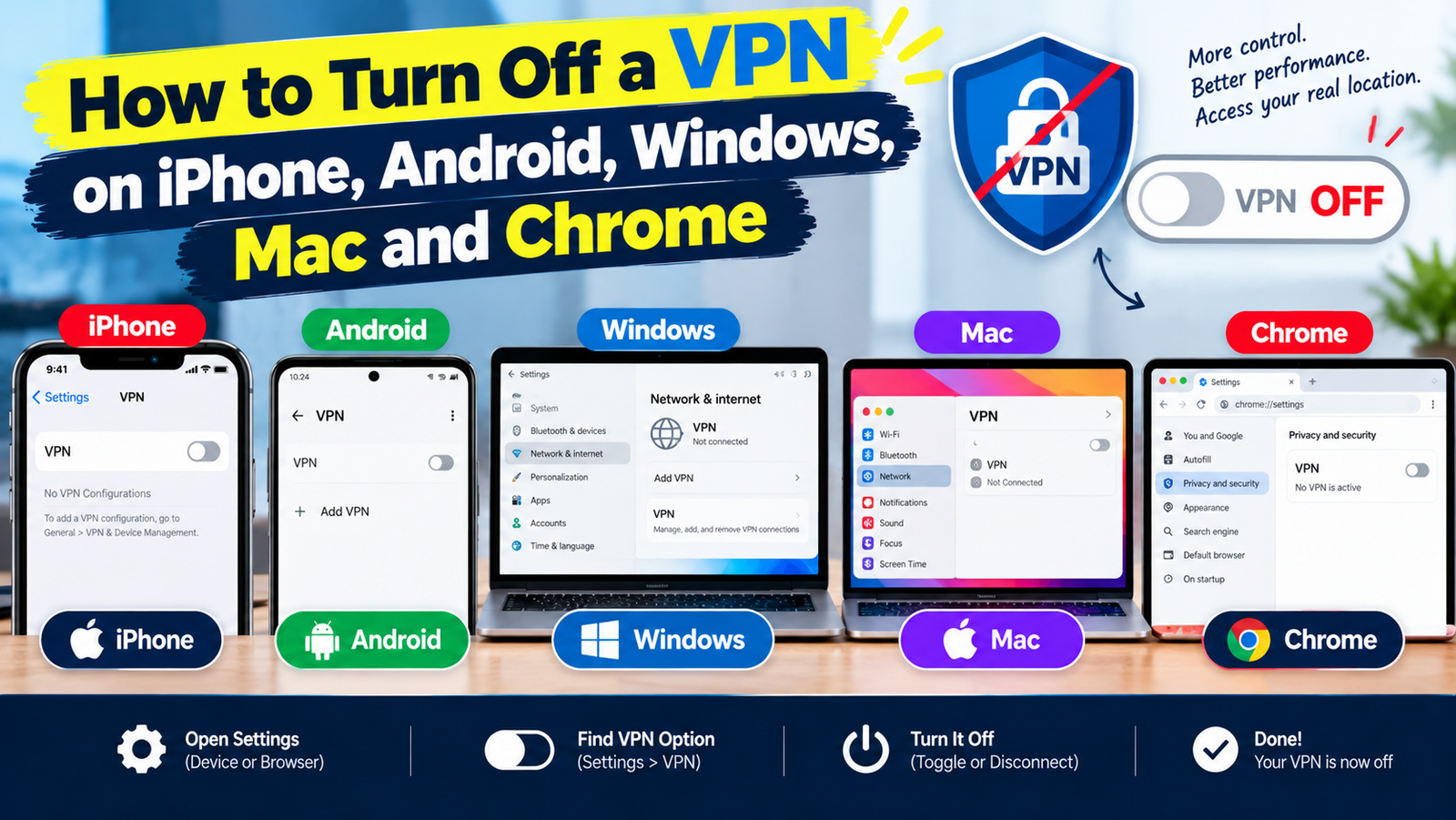
To turn off a VPN, open the VPN app and tap Disconnect. If you set it up without an app, switch it off in your device settings: on iPhone go to Settings and toggle VPN off, on Android open Settings, then Network & internet, then VPN, and on Windows 11 open Settings, then Network & internet, then VPN and select Disconnect.
Below are the exact steps for each device, how to stop a VPN from switching itself back on, and how to delete a VPN profile completely.
Turn Off a VPN on iPhone or iPad
- Open Settings.
- Tap the VPN switch near the top and turn it off.
If you do not see that switch, go to Settings, then General, then VPN & Device Management, then VPN, and toggle the status to Not Connected.
Stop the VPN from turning back on by itself
Many VPN apps use a feature called Connect On Demand. Tap the small info button next to the VPN profile and turn Connect On Demand off, or disable auto-connect inside the VPN app.
Remove a VPN from iPhone completely
- Go to Settings, then General, then VPN & Device Management, then VPN.
- Tap the info button next to the profile.
- Tap Delete VPN.
- Delete the VPN app from your Home Screen as well.
Some work and school iPhones have VPN profiles installed by an administrator. Those can only be removed by the organisation, as Apple explains in its guide to configuration profiles.
Turn Off a VPN on Android
- Swipe down to open Quick Settings and tap the VPN notification, then Disconnect. Or:
- Open Settings and tap Network & internet. On Samsung phones, tap Connections, then More connection settings.
- Tap VPN, then tap the gear icon next to the active VPN.
- Tap Disconnect or Forget.
Turn off Always-on VPN
If the VPN reconnects straight away, Always-on VPN is enabled. In the same gear menu, switch off Always-on VPN and Block connections without VPN. Leaving the second one on can cut your internet completely once the VPN is off.
Turn Off a VPN on Windows 11
- Click the network icon in the taskbar, then click VPN and select Disconnect. Or:
- Open Settings, then Network & internet, then VPN.
- Click Disconnect next to the connection.
- To delete it, click the arrow next to the VPN and choose Remove.
Third-party VPN apps also run in the system tray. Right-click the app icon and choose Disconnect or Quit, then turn off “Launch on startup” in the app settings so it does not reconnect at the next boot.
Turn Off a VPN on a Mac
- Click the VPN icon in the menu bar and choose Disconnect, or open System Settings and click VPN.
- Switch off the active VPN.
- To delete it, click the info button next to the profile, then Remove Configuration.
Turn Off a VPN Browser Extension in Chrome
- Click the Extensions icon (the puzzle piece) in the toolbar.
- Open the VPN extension and click Disconnect, or
- Go to chrome://extensions and switch the VPN extension off.
A browser VPN only covers that browser. If your other apps still look like they are using a VPN, check the device-wide settings above too.
Turn Off a VPN on Your Router
If every device in the house looks like it is in another country, the VPN may be running on the router. Log in to the router’s admin page, open the VPN Client section, and deactivate the connection. See our guide on how to set up a VPN for where those settings live.
When You Should Turn Off Your VPN
- A banking, payments or streaming app refuses to work while the VPN is on. Our guide to VPN detection explains why.
- You need local search results or a local store’s prices.
- You are troubleshooting a slow connection or a network problem.
- You are on your own trusted home Wi-Fi and do not need the extra privacy.
Remember to switch it back on for public Wi-Fi. If you are unsure whether you need it at all, read do I need a VPN.
What to Do If Your Internet Stops Working After Turning Off the VPN
- Turn off the kill switch or “Block connections without VPN” setting.
- Restart your device.
- On Windows, reset the network adapter: Settings, then Network & internet, then Advanced network settings, then Network reset.
- Remove any custom DNS settings the VPN app left behind.
Frequently Asked Questions
Is it safe to turn off my VPN?
Yes. Your connection goes back to normal, and HTTPS still protects passwords and payments. You lose the extra privacy layer until you turn it back on.
Why does my iPhone keep turning the VPN back on?
Connect On Demand or the app’s auto-connect setting is enabled. Switch both off.
Does turning off a VPN delete it?
No. It only disconnects it. Delete the profile and uninstall the app to remove it fully.