
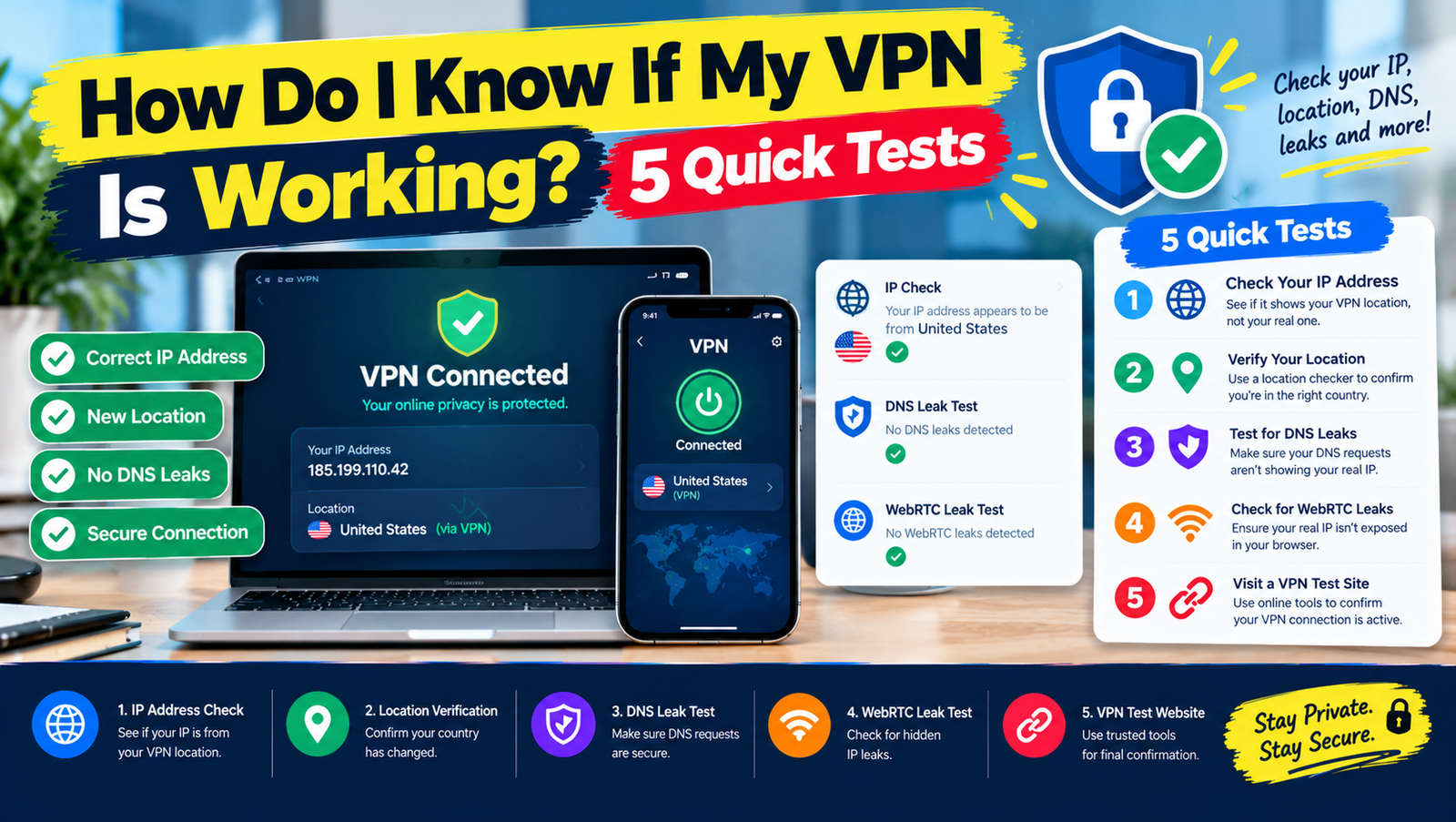
To know if your VPN is working, check your IP address with the VPN off, then connect and check again. If the IP address and location now show the VPN server instead of your real city, the VPN is working. Then run a DNS leak test and a WebRTC leak test to make sure nothing slips around the tunnel.
The whole check takes about two minutes. Here are the five tests in order, from the basic one everyone should do to the stricter ones worth running after you install a new VPN.
Test 1: Compare Your IP Address With the VPN Off and On
- Disconnect the VPN.
- Open an IP lookup site and write down your IP address and location. Our guide on how to look up your IP address lists reliable options.
- Connect the VPN to a server in a different city or country.
- Refresh the IP lookup page.
What you should see: a different IP address and the VPN server’s location. If you still see your own IP, the VPN is not routing your traffic. Reconnect, or switch server. Our explainer on whether a VPN changes your IP address shows what should and should not change.
Test 2: Run a DNS Leak Test
Every time you open a website, your device asks a DNS server for its address. A DNS leak happens when those requests skip the VPN and go to your internet provider, which reveals the sites you visit.
- With the VPN connected, visit a DNS leak test site such as dnsleaktest.com and run the extended test.
- Look at the list of DNS servers in the results.
Pass: the servers belong to your VPN provider or a neutral resolver it uses. Fail: you see your own ISP’s name. Turn on the VPN app’s DNS leak protection, or read our guide to secure DNS for a manual fix.
Test 3: Check for WebRTC Leaks in Your Browser
WebRTC powers video calls in browsers, and it can reveal your real IP address to a website even with a VPN on. Visit a WebRTC leak test page while connected. If your real public IP appears anywhere, enable WebRTC leak protection in the VPN’s browser extension or settings. Firefox users can also turn off WebRTC by setting media.peerconnection.enabled to false in about:config.
Test 4: Make Sure the Kill Switch Works
A kill switch blocks your internet if the VPN drops, so your traffic never goes out unprotected.
- Turn on the kill switch in the VPN app.
- Start a large download or a video stream.
- Force the VPN to drop, for example by switching server mid-stream or briefly turning Wi-Fi off and on.
The download should pause until the VPN reconnects. If traffic continues without the VPN, the kill switch is not working on that device.
Test 5: Look at the Connection Status on Your Device
| Device | Where to check |
|---|---|
| iPhone and iPad | A “VPN” badge in the status bar, and Settings, then VPN shows Connected |
| Android | A key icon in the status bar, and Settings, then Network & internet, then VPN |
| Windows 11 | Settings, then Network & internet, then VPN shows Connected |
| Mac | System Settings, then VPN, or the VPN icon in the menu bar |
A status icon only proves the tunnel is up. Tests 1 to 3 prove your traffic is actually going through it.
Signs Your VPN Is Not Working Properly
- Streaming services show your home library when connected to a foreign server.
- Websites still greet you with your real city.
- Your connection keeps dropping. See why your VPN keeps disconnecting.
- Sites block you with “VPN detected” messages. That means the VPN is working but its IP is flagged. Our VPN detection guide explains why.
What to Do If Your VPN Fails a Test
- Update the VPN app to the latest version.
- Switch protocol to WireGuard or OpenVPN in the app’s settings.
- Turn on DNS leak protection, IPv6 leak protection and the kill switch.
- Disable other VPNs, proxies or “secure DNS” features that may conflict.
- Reinstall the app. If it still leaks, consider another provider. Our Proton VPN safety review covers one audited option.
Privacy researchers at the Electronic Frontier Foundation offer more background on choosing a trustworthy VPN in their Surveillance Self-Defense guide.
Frequently Asked Questions
Why does Google still show my real location with a VPN?
Google also uses your account history, Wi-Fi location and device GPS. Location services can reveal your position even when the IP address is hidden.
Is a VPN working if my speed drops?
A small drop is normal and a sign that traffic is going through the VPN. A large drop usually means a distant or busy server.
How often should I test my VPN?
Test after installing a new VPN, after major app or system updates, and whenever something looks wrong.