
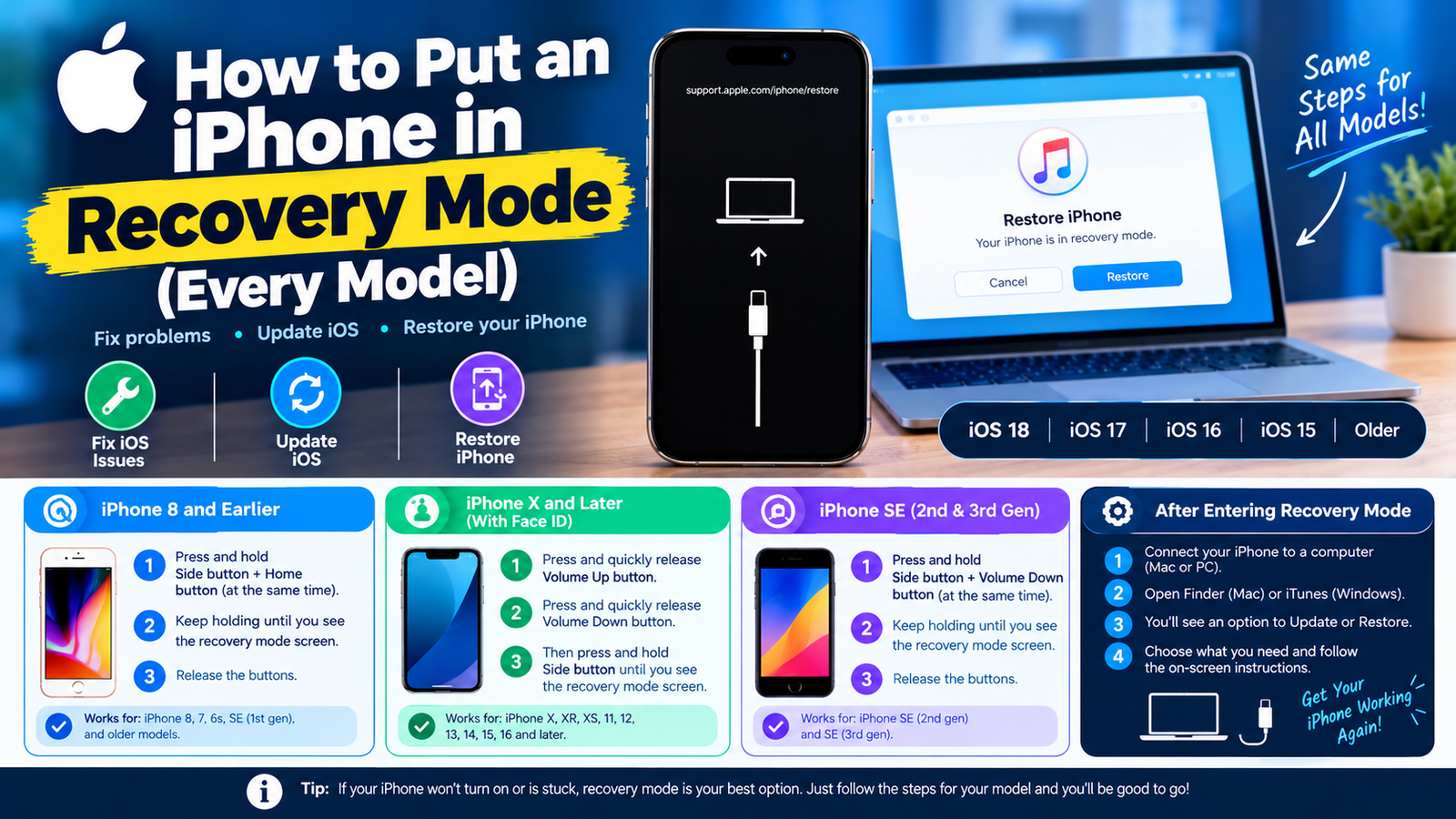
To put an iPhone in recovery mode, connect it to a computer, then press and release volume up, press and release volume down, and hold the side button until the screen shows a cable pointing to a computer. That sequence works on the iPhone 8 and every later model. Older iPhones use a different button combination, covered below.
Recovery mode lets a Mac or PC reinstall iOS when the phone cannot fix itself. Here is when to use it, how to do it on each model, and how to get out again.
When You Should Use iPhone Recovery Mode
- The iPhone is stuck on the Apple logo for several minutes with no progress bar.
- An iOS update failed or froze part way through.
- Your computer does not recognize the iPhone, or says it is already in recovery mode.
- The screen shows the connect-to-computer image by itself.
- You forgot the passcode and need to erase the phone.
For a forgotten passcode on recent iOS versions, you may not need a computer at all. After several wrong attempts, the lock screen offers a Forgot Passcode option that lets you erase the phone using your Apple Account password.
What You Need Before You Start
- A computer. A Mac, or a Windows PC with the Apple Devices app or iTunes installed.
- A cable that reliably connects your iPhone to it.
- Up-to-date software on the computer.
- A backup, if you can get one. Updating keeps your data. Restoring erases everything.
How to Put iPhone in Recovery Mode: Steps for Each Model
First connect the iPhone to the computer. On a Mac running macOS Catalina or later, open Finder. On an older Mac, open iTunes. On Windows, open the Apple Devices app or iTunes. Then use the steps for your model and keep holding until you see the recovery screen, even when the Apple logo appears.
| iPhone model | Buttons to press |
|---|---|
| iPhone 8 and later, including iPhone SE (2nd generation and later) | Press and release volume up. Press and release volume down. Then press and hold the side button. |
| iPhone 7 and iPhone 7 Plus | Press and hold the side button and the volume down button together. |
| iPhone 6s and earlier, including iPhone SE (1st generation) | Press and hold the Home button and the top or side button together. |
You are in recovery mode when the screen shows a cable and a computer. These are the same steps Apple gives in its article If you can’t update or restore your iPhone.
Update or Restore: Which Option to Choose on Your Computer
Once the phone is in recovery mode, your computer shows a message with two buttons.
- Update reinstalls iOS and tries to keep your data and settings. Always try this first.
- Restore erases the iPhone and installs a clean copy of iOS. Use it if Update fails, or if you are erasing a phone with a forgotten passcode.
The computer then downloads the software. If the download takes longer than 15 minutes, the iPhone leaves recovery mode by itself. Let the download finish, then repeat the button steps to enter recovery mode again.
After a restore you set the phone up from scratch or from a backup. Apps come back from the App Store, and our guide on how to see and reinstall deleted apps on iPhone shows where to find any that are missing.
How to Get an iPhone Out of Recovery Mode
If you entered recovery mode by mistake, or changed your mind:
- Unplug the iPhone from the computer.
- Hold the side button until the recovery screen disappears.
- Let go and wait for the phone to start normally.
If it will not leave, do a force restart using the same button sequence you used to get in, but release when the Apple logo appears. A phone that keeps returning to recovery mode by itself has a software problem that needs the Update or Restore step.
Recovery Mode vs DFU Mode: What Is the Difference?
Recovery mode starts a small part of iOS that talks to your computer, and it is what Apple recommends. DFU mode goes a level deeper and skips that part entirely, leaving a black screen. Technicians use it when recovery mode itself fails. For almost every problem at home, recovery mode is the right tool and DFU mode is unnecessary.
What to Do If Recovery Mode Is Not Working
- The recovery screen never appears. You are probably letting go too early. Keep holding past the Apple logo. On iPhone 8 and later, press the two volume buttons quickly, one after the other, before holding the side button.
- The computer does not see the iPhone. Try another cable and another USB port, plug straight into the computer and not a hub, and update or reinstall the Apple Devices app or iTunes.
- You get an error number during restore. Restart both devices and try again, ideally on a different computer or network.
- A button is broken. You will need Apple or an authorized repair shop to put the phone into recovery mode.
Frequently Asked Questions About iPhone Recovery Mode
Does recovery mode delete everything on my iPhone?
Entering recovery mode deletes nothing. Choosing Update keeps your data. Choosing Restore erases the phone.
Can I put an iPhone in recovery mode without a computer?
You can show the recovery screen, but you cannot do anything useful from it without a Mac or PC. Apple Stores can do it for you if you do not have one.
How long does recovery mode take?
Entering it takes seconds. The update or restore usually takes 15 to 45 minutes, depending mostly on your internet speed.
Will recovery mode remove Activation Lock?
No. After a restore, the iPhone still asks for the Apple Account it was linked to.
More iPhone help: how to change the alarm sound on iPhone and how to sync messages from iPhone to Mac.