
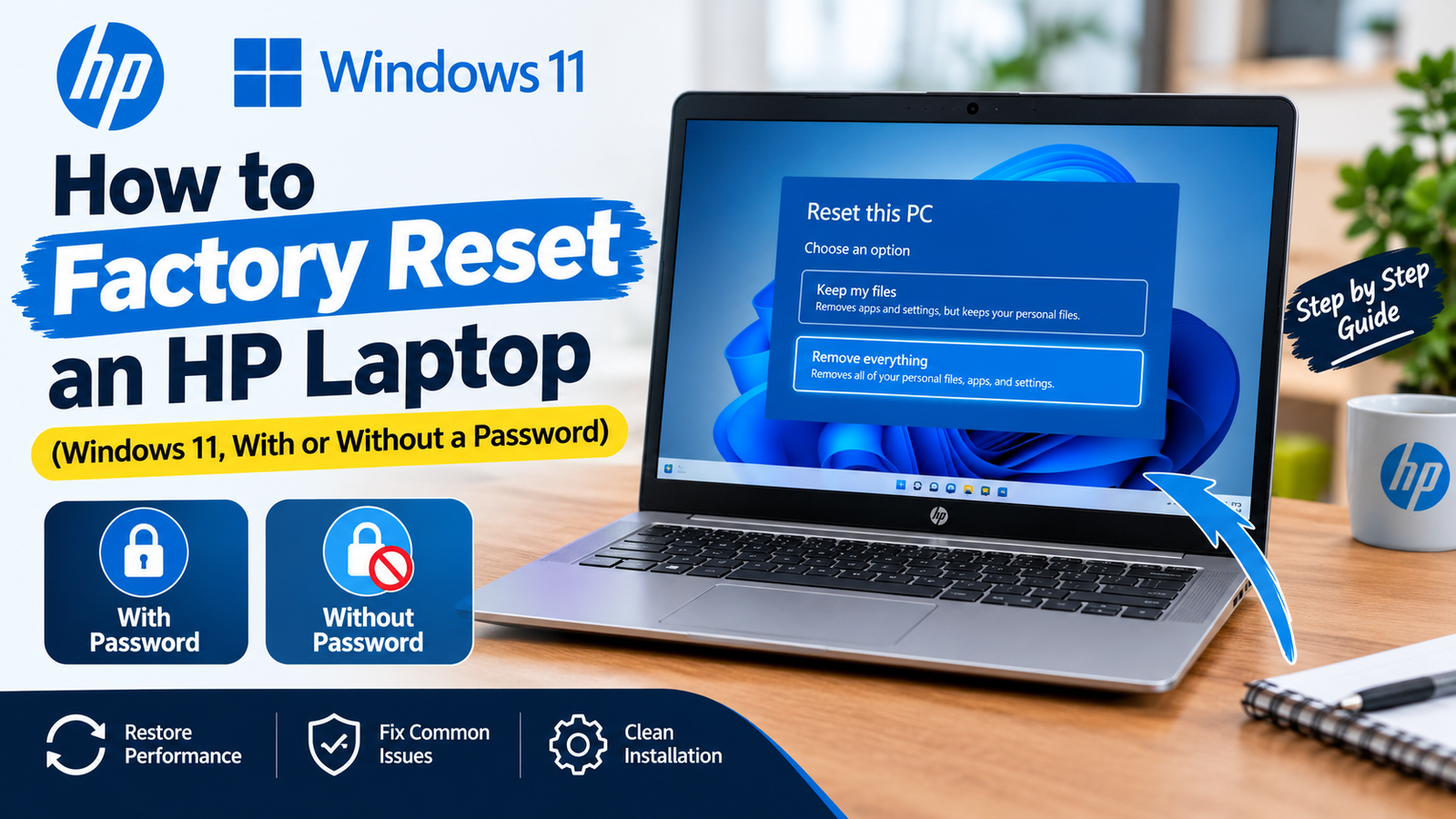
To factory reset an HP laptop on Windows 11, open Settings > System > Recovery, click Reset PC, choose “Remove everything,” pick Cloud download or Local reinstall, and follow the prompts. If Windows will not start or you cannot sign in, press F11 repeatedly as the laptop powers on to open the recovery menu, then choose Troubleshoot > Reset this PC.
A reset can take anywhere from 30 minutes to a couple of hours. Before you start, spend five minutes on the checklist below so you do not lose files or get locked out afterwards.
Before You Reset: 5-Point Checklist
- Back up your files to OneDrive, Google Drive or an external drive. “Remove everything” deletes all personal data.
- Find your BitLocker recovery key if your laptop uses device encryption. It is usually saved in your Microsoft account at account.microsoft.com/devices/recoverykey.
- Know your Microsoft account password, since you will sign in again during setup.
- Plug in the charger. Never reset on battery power alone.
- Note your software licenses (Office, Adobe, antivirus) so you can reinstall them.
Method 1: Reset Your HP Laptop From Windows Settings
Use this if Windows starts normally.
- Click Start and open Settings.
- Go to System > Recovery.
- Next to Reset this PC, click Reset PC.
- Choose Keep my files (removes apps and settings but keeps documents) or Remove everything (a true factory reset).
- Choose Cloud download (downloads a fresh copy of Windows, about 4 GB or more) or Local reinstall (uses files already on the laptop).
- If you are selling or giving the laptop away, open Change settings and turn on Clean data so files are harder to recover.
- Click Next, then Reset. The laptop will restart several times.
Microsoft explains each option on its Windows recovery options page.
Method 2: Factory Reset an HP Laptop With F11 (When Windows Won’t Start)
- Shut the laptop down completely.
- Press the power button, then immediately tap F11 repeatedly until a blue Choose an option screen appears.
- Select Troubleshoot > Reset this PC.
- Choose Remove everything, then Cloud download or Local reinstall, and follow the prompts.
If F11 does not work, Windows usually opens the recovery screen by itself after two or three failed start-ups. You can also press Esc at power-on on many HP models to open the startup menu, then press F11 from there.
Method 3: Reset an HP Laptop Without the Password
Forgot your PIN or password? You can still reset from the sign-in screen:
- On the sign-in screen, click the power icon in the bottom-right corner.
- Hold Shift and click Restart.
- When the blue menu appears, choose Troubleshoot > Reset this PC > Remove everything.
If BitLocker is on, Windows may ask for the recovery key before it continues, which is why the checklist above matters.
Method 4: Reinstall With HP Cloud Recovery
If the recovery partition is damaged and Reset this PC fails, HP offers the HP Cloud Recovery Tool. Run it on any working Windows computer, enter your laptop’s product number, and it builds a bootable USB drive containing your model’s original Windows image and HP drivers. You will need a blank USB flash drive (32 GB or larger is the safe choice) and a stable internet connection. HP describes the process in its HP Cloud Recovery support article.
Which Reset Option Should You Choose?
| Your situation | Best choice |
|---|---|
| Laptop is slow or buggy, you are keeping it | Keep my files + Cloud download |
| Selling or donating the laptop | Remove everything + Clean data |
| Malware infection | Remove everything + Cloud download |
| Windows will not boot | F11 recovery, or HP Cloud Recovery USB |
After the Reset: What to Do Next
- Run Windows Update until no updates remain.
- Install HP Support Assistant to get the latest HP drivers and BIOS updates.
- Reinstall your apps and restore files from backup.
- Set up your security tools again, including a VPN if you use one on public Wi-Fi. New to VPNs? Read what a VPN is and how it works.
- If your printer stops working after the reset, our guide to fixing a printer offline error will help.
HP Factory Reset FAQ
How long does it take to factory reset an HP laptop?
Usually between 30 minutes and 2 hours, depending on the option, drive speed and download speed.
Does a factory reset remove Windows?
No. It reinstalls Windows. Your license stays activated because it is linked to the laptop’s hardware.
What does F11 do on an HP laptop?
Pressing F11 at startup opens the Windows recovery environment, where you can reset the PC or use other repair tools.
Can I factory reset my HP laptop without a password?
Yes. Hold Shift and click Restart on the sign-in screen, then choose Troubleshoot > Reset this PC.
Will a factory reset fix a slow HP laptop?
Often, yes, especially if the slowdown comes from software clutter or malware. It will not fix failing hardware such as an old hard drive.