
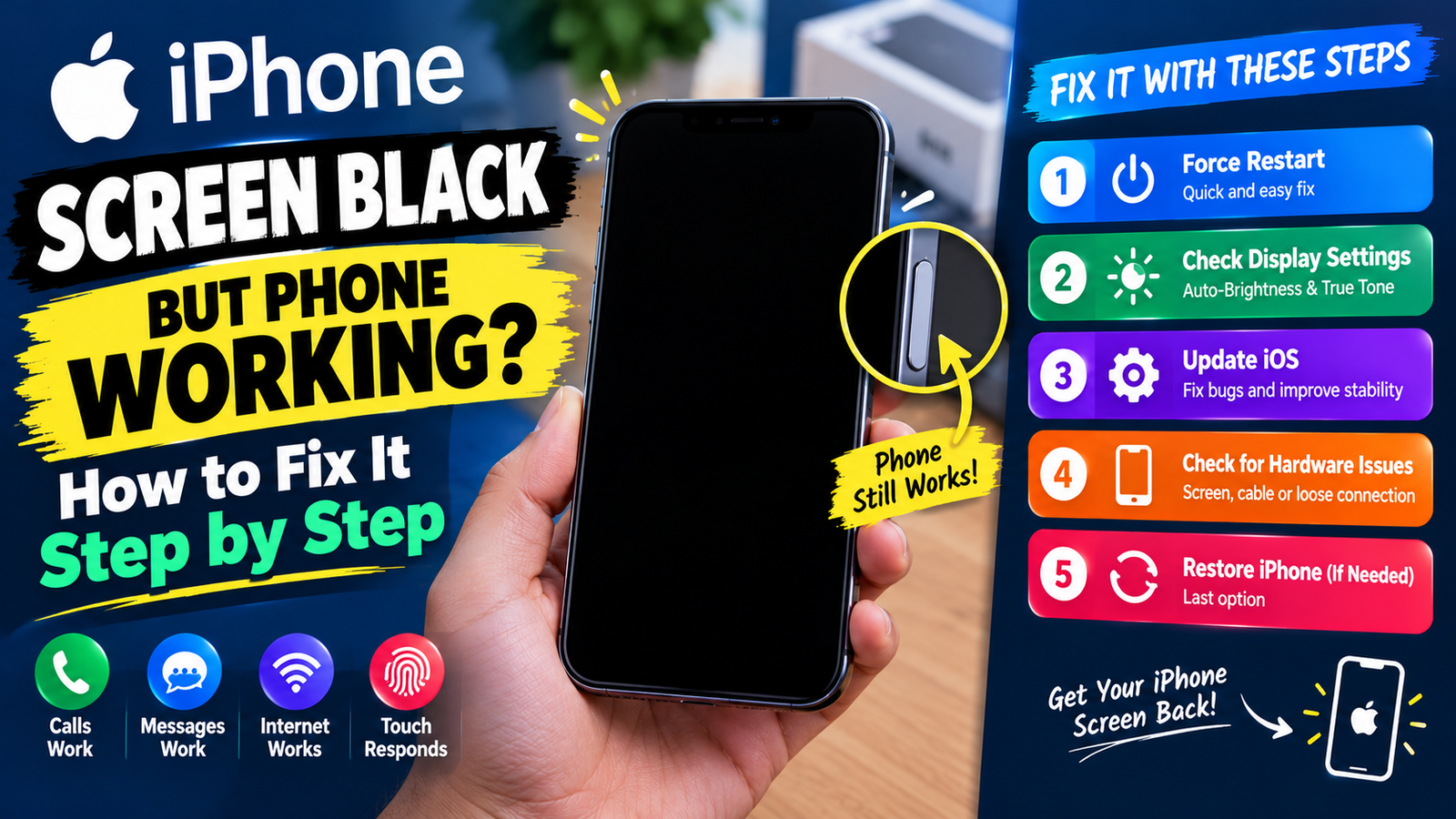
If your iPhone screen is black but the phone still rings, vibrates or plays sound, force restart it first. On iPhone 8 and later, press and release Volume Up, press and release Volume Down, then hold the side button until the Apple logo appears. That fixes a frozen display in most cases. If it does not, the cause is usually a software crash, an accessibility setting that turned the screen dark, or a damaged display or display cable.
Work through the steps below in order. You can do the first five yourself in a few minutes.
Why an iPhone Screen Goes Black While the Phone Is Still On
- Frozen software: iOS or an app crashed, and the display stopped refreshing.
- Accessibility settings: Screen Curtain, Zoom or a very low White Point can make the screen look off.
- Display hardware: a drop or pressure can damage the screen or the cable that connects it to the board.
- Liquid exposure: moisture can short the display circuit.
- Overheating: very hot phones dim or turn off the display to cool down.
Step 1: Force Restart Your iPhone
| Model | How to force restart |
|---|---|
| iPhone 8, SE (2nd gen) and later | Press Volume Up, press Volume Down, then hold the side button until the Apple logo appears |
| iPhone 7 and 7 Plus | Hold Volume Down and the side button together until the Apple logo appears |
| iPhone 6s, SE (1st gen) and earlier | Hold the Home button and the side or top button together |
Keep holding the side button even if the power slider appears. It can take 10 to 20 seconds. Apple covers restart steps in its iPhone User Guide.
Step 2: Turn Off Screen Curtain With VoiceOver
If your iPhone speaks when you touch the screen, VoiceOver is on, and Screen Curtain may be hiding the display. Triple-tap the screen with three fingers to toggle Screen Curtain off. Then ask Siri to “turn off VoiceOver”.
Step 3: Check Zoom, Brightness and White Point
- Double-tap the screen with three fingers to turn off Zoom if you are zoomed into a dark area.
- Ask Siri to “turn brightness up to 100 percent”.
- Ask Siri to open Settings, then check Accessibility, then Display & Text Size, and turn off Reduce White Point.
Step 4: Charge It and Let It Cool
A nearly flat battery or an overheated phone can produce a black screen while some functions keep working. Leave it on a charger for 30 minutes, away from heat. If it is not charging properly, see why your iPhone is not charging.
Step 5: Connect to a Computer and Update iOS
If the screen stays black after a restart, connect the iPhone to a Mac (Finder) or a Windows PC (Apple Devices app). If the computer recognises it, back it up first, then choose Update. A fresh copy of iOS fixes many display crashes without erasing data.
Step 6: Use Recovery Mode
If the computer cannot update it normally, put the iPhone into recovery mode and choose Update. Our guide on how to put an iPhone in recovery mode covers every model. Choose Restore only as a last resort, because it erases the device.
Step 7: Check for Physical or Water Damage
- Lines, flickering or a black area after a drop point to a damaged display.
- A screen that only works when you press on a certain spot suggests a loose display connector.
- Recent contact with water? Follow our steps to get water out of an iPhone and avoid charging until it is dry.
Step 8: Get the Display Repaired
If none of this works, the screen needs service. Book through Apple’s iPhone repair page or an authorised provider. AppleCare+ makes screen repairs much cheaper.
How to Save Your Data When the Screen Is Black
If the computer recognises your iPhone, back it up before any repair. If you have iCloud Backup on, your phone may already back up overnight while charging on Wi-Fi. You can check the last backup date at icloud.com from another device.
Frequently Asked Questions
Why is my iPhone screen black but I can hear notifications?
The phone is running, but the display is frozen, darkened by a setting, or damaged. A force restart is the first fix.
Can a black screen fix itself?
A software freeze often clears after a force restart. Hardware damage will not fix itself.
Will a force restart delete my data?
No. It only restarts the phone. Restoring in recovery mode is what erases data.
New iPhone instead? Compare models in our iPhone 17 vs 17 Pro guide.