
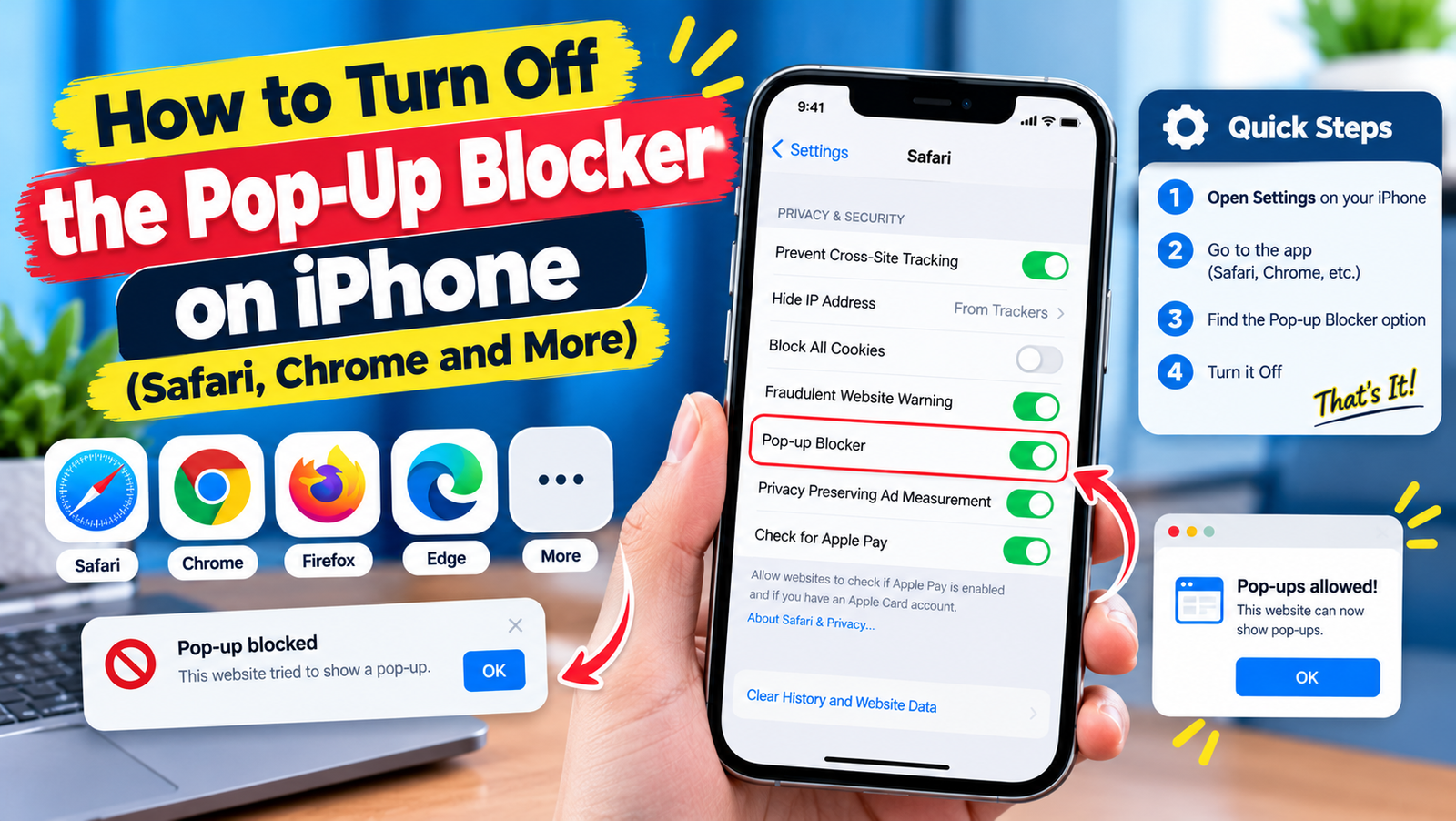
To turn off the pop-up blocker on iPhone in Safari, open Settings, tap Apps, tap Safari, and switch off Block Pop-ups. On iOS 17 and earlier, Safari is listed directly in Settings without the Apps step. In Chrome for iPhone, open Chrome, tap the three-dot menu, then Settings, then Content Settings, then Block Pop-ups, and switch it off.
Pop-up blockers stop annoying ads, but they also block legitimate windows such as bank verification, school portals, payment pages and login screens. Here is how to turn the blocker off in each browser and how to do it safely.
Turn Off the Pop-Up Blocker in Safari
- Open the Settings app.
- Scroll down and tap Apps (on iOS 18 and later).
- Tap Safari.
- Under General, turn off Block Pop-ups.
- Go back to Safari and reload the page.
Safari’s blocker is on by default. Apple’s iPhone User Guide covers the rest of Safari’s settings.
Turn Off the Pop-Up Blocker in Chrome on iPhone
- Open Chrome.
- Tap the three-dot menu at the bottom right.
- Tap Settings, then Content Settings.
- Tap Block Pop-ups and switch it off.
Turn Off Pop-Up Blocking in Firefox and Edge
| Browser | Steps |
|---|---|
| Firefox | Menu, Settings, then turn off Block Pop-up Windows |
| Microsoft Edge | Menu, Settings, Privacy and security, Block pop-ups, then switch off |
| DuckDuckGo | Pop-ups are handled per site. Allow them when the browser prompts you |
Allow Pop-Ups for One Website Only
Safari on iPhone does not offer a per-site pop-up list, so the safest approach is:
- Turn off Block Pop-ups.
- Complete what you need on the trusted site, such as a payment or login.
- Turn Block Pop-ups back on straight away.
On a Mac, Safari does let you allow pop-ups per website under Safari, then Settings, then Websites, then Pop-up Windows.
Still Seeing “Pop-Up Blocked” or Nothing Happening?
- Content blockers: ad blockers installed as Safari extensions can block pop-ups too. Check Settings, then Apps, then Safari, then Extensions.
- Screen Time restrictions: content limits can stop some pages from opening. Check Settings, then Screen Time.
- Private Relay or a VPN: some bank and payment pages fail through them. Turn off your VPN temporarily using our guide on how to turn off a VPN, or compare options in iCloud Private Relay vs VPN.
- Cookies blocked: logins inside pop-ups may need cross-site cookies. In Safari settings, try turning off Prevent Cross-Site Tracking temporarily.
Is It Safe to Turn Off the Pop-Up Blocker?
It is safe for short periods on websites you trust. Keep it on for general browsing, because many scam pages use pop-ups that claim your iPhone has a virus or that you have won a prize. iPhones do not show virus warnings in Safari. Close the tab and never call a number or install a profile from a pop-up. The FTC lists common examples in its tech support scam guide.
How to Turn the Pop-Up Blocker Back On
Follow the same steps and switch Block Pop-ups back on. It takes effect immediately.
Frequently Asked Questions
Why can’t I find Safari in Settings?
On iOS 18 and later, Apple moved built-in apps into Settings, then Apps. Scroll to the bottom of Settings, tap Apps, then Safari.
Does turning off the pop-up blocker affect other apps?
No. The Safari setting only affects Safari, and each browser has its own setting.
How do I stop pop-up ads that still appear?
Clear website data in Safari settings, remove unknown configuration profiles, and avoid the site that triggered them.
More iPhone fixes: turn off vibration on iPhone and why your iPhone says No SIM.