
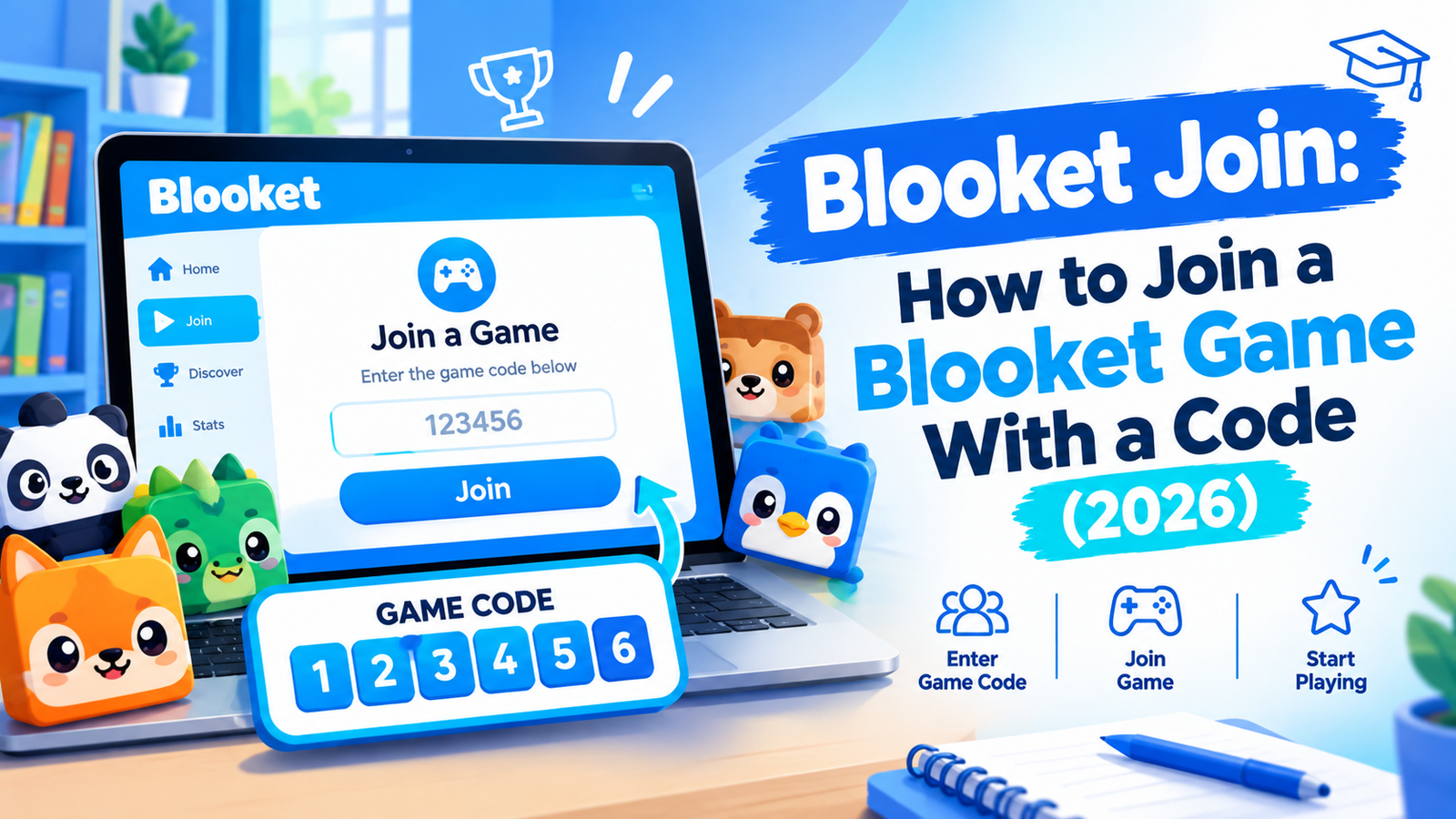
That’s all most players need. The rest of this guide is for the moments when it doesn’t go smoothly: a code that won’t take, a homework link instead of a live game, or a school laptop that refuses to load the page.
What “Blooket join” actually means
Blooket is a free quiz-game platform that millions of teachers use for review. A host picks a question set and a game mode, and players answer on their own devices to earn gold in Gold Quest, hold off enemy waves in Tower Defense, or speed to the finish in Racing. There are more than 25 modes, so no two sessions feel quite the same.
Joining simply means getting into someone else’s game. It isn’t the same as logging in. The host needs a Blooket account, but players don’t.
How to join a Blooket game, step by step
- Open play.blooket.com in any browser. Type the address yourself or use your teacher’s link, because lookalike sites with misspelled names do turn up in search results.
- Enter the Game ID shown on the host’s screen. It’s seven digits, numbers only.
- Type a nickname. If the host turned on random names, you’ll be assigned one instead.
- Pick a Blook, the cartoon character that represents you. The host can ban certain Blooks, so a few may be off the table.
- Wait in the lobby. The game starts when the host clicks Start.
There are two quicker ways in. Scan the QR code on the host’s screen with your device camera, or tap the join link if your teacher posted one in Google Classroom, an email, or a class chat. Either one skips the code-typing step.
Should you log in before joining?
Only if you want the extras. Signed-in players can earn rewards and use Blooks from their own collection, and Blooket’s help center says to log in before you join, not partway through. You need to be at least 13 to create an account in the U.S. (16 outside the U.S.), which is why plenty of younger students never bother with one.
How to join a Blooket homework assignment
Homework works differently. There’s no lobby and no Game ID. Your teacher shares a link, often through Google Classroom or email, or a QR code. Open it and you’ll see the assignment title, your teacher’s name, the due date, and a Correct Goal: the number of right answers you need.
Click Get Started, choose a solo game mode, hit Play, and enter your name. When you reach the goal, you can end the homework or keep playing, and your teacher sees you finished either way. One tip worth taking seriously: do it in one sitting. Close the tab or leave it idle too long and you’ll have to start over from the link.
Live game vs. homework at a glance
| Live game | Homework | |
|---|---|---|
| How you get in | Game ID, QR code, or join link | Link or QR code |
| Who picks the mode | The host | You pick a solo mode |
| Timing | Everyone plays at once | On your own before the due date |
| Account needed | No | No |
Joining on a Chromebook, phone, or tablet
Blooket runs in the browser, so the steps are the same on a school Chromebook, an iPad, an iPhone, or an Android phone. There’s nothing to download. Be careful with app stores, actually. Blooket’s help center only describes joining through the browser, and at least one App Store listing using the Blooket name is a puzzle game from an unrelated developer.
Blooket join not working? Check these first
- Wrong or expired code: Recheck all seven digits. Each Game ID belongs to one session, so a code from a game that already ended won’t work. Ask the host for the current one.
- The game already started: Hosts can turn off late joining. If they did, you’ll have to wait for the next round.
- The lobby is full: With a free host account, most live modes cap at 60 players. Blooket Plus raises many of them to 300.
- The page won’t cooperate: Browser extensions, ad blockers especially, can break parts of the site even though Blooket doesn’t show ads. Switch them off or try a private window.
- “Access Blocked” on a school account: Select Request access and tell your teacher. The fix happens in your district’s Google Workspace settings, not on your device.
- Still stuck: Your school’s IT team can run Blooket’s connection checker at debug.blooket.com and make sure firebaseio.com isn’t blocked. Don’t try to get around school filters on your own.
For teachers: where the Game ID comes from
Log in at blooket.com, open a question set from My Sets or Discover, and click Host. Pick a game mode, review the settings, then click Host Now. The lobby shows the Game ID, a QR code, and a join link, so project it or share your screen in a virtual class.
Four settings decide how joining goes: Allow Late Joining, Use Random Names, Banned Blooks, and Allow Student Accounts. If you let students pick their own names, Blooket suggests first names or initials, which makes the post-game report far easier to read. When everyone’s in, click Start.