
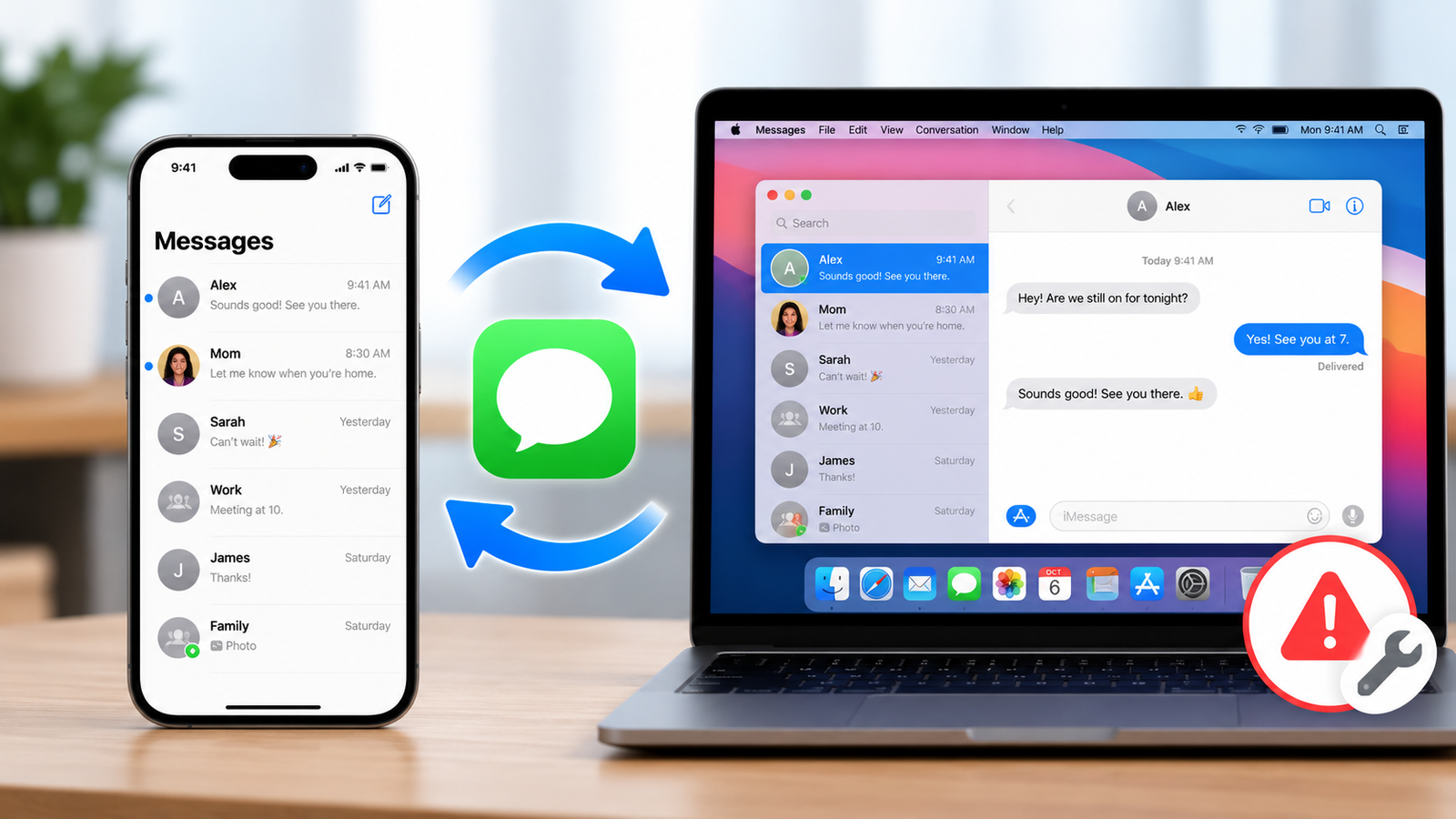
To sync messages from iPhone to Mac, sign in to the same Apple Account on both devices and turn on Messages in iCloud on each one. That covers iMessage conversations. To also get regular SMS, MMS and RCS texts on your Mac, switch on Text Message Forwarding on the iPhone.
It takes about two minutes when everything lines up. Here is what to check first, then the exact steps, then what to do if messages still do not appear.
What You Need Before You Sync iPhone Messages to a Mac
- The same Apple Account signed in on the iPhone and the Mac.
- Two-factor authentication turned on for that account, and iCloud Keychain enabled.
- Both devices updated and connected to the internet.
- Enough iCloud storage. Messages and their attachments count against your iCloud space.
How to Sync Messages From iPhone to Mac With Messages in iCloud
Step 1: Turn on Messages in iCloud on your iPhone
- Open Settings and tap your name at the top.
- Tap iCloud.
- Tap See All next to Saved to iCloud.
- Tap Messages in iCloud.
- Turn on Use on this iPhone.
On iOS 16 through iOS 17.1 the last option is called Sync this iPhone.
Step 2: Turn on Messages in iCloud on your Mac
- Open the Messages app on your Mac. If it asks, sign in with your Apple Account.
- In the menu bar, choose Messages, then Settings.
- Click the iMessage tab.
- Select Enable Messages in iCloud.
- If you see a Sync Now button, click it to start straight away.
Apple documents both halves in its guide to setting up iCloud for Messages on all your devices.
Step 3: Give the first sync time to finish
You can send and receive messages straight away, but years of history with photos and videos can take a while to download. Keep the Mac awake, plugged in and on Wi-Fi until it is done.
How to Get SMS and RCS Text Messages on Your Mac Too
Messages in iCloud keeps your history in sync. To send and receive green-bubble texts from the Mac as they arrive, your iPhone has to relay them.
- On the iPhone, open Settings, tap Apps, then tap Messages. On older iOS versions, Messages is directly in Settings.
- Make sure iMessage is on.
- Tap Send & Receive and check that the Apple Account shown matches the one on your Mac.
- Go back and tap Text Message Forwarding.
- Turn on the switch next to your Mac.
The full walkthrough is in Apple’s Set up Messages on Mac guide. Availability of SMS, MMS and RCS forwarding can vary by carrier and region.
iMessage vs SMS and RCS: Which Setting Syncs Which Messages
| Message type | Bubble color | What makes it appear on the Mac |
|---|---|---|
| iMessage | Blue | Signing in to iMessage on the Mac with the same Apple Account |
| SMS, MMS and RCS | Green | Text Message Forwarding on the iPhone |
| Older conversations and full history | Both | Messages in iCloud turned on for both devices |
What to Do When Messages Are Not Syncing Between iPhone and Mac
Try these in order. Most problems are solved by the first three.
- Confirm the account matches. On the Mac, open Messages settings and look at the iMessage tab. On the iPhone, check Send & Receive. The Apple Account and the selected phone number and email addresses should be the same on both.
- Check the “reached at” addresses. If your phone number is not ticked on the Mac, conversations started with your number will not show there.
- Force a sync. On the Mac, click Sync Now in the iMessage tab if it is offered.
- Look at your iCloud storage. When iCloud is full, syncing stops quietly. Check it in Settings under your name, then iCloud.
- Turn the setting off and on. Switch Messages in iCloud off and back on, starting with the device that is behind.
- Sign out of iMessage and back in. On the Mac, use Sign Out in the iMessage tab, restart Messages and sign in again.
- Restart and update both devices. Pending updates and stuck background processes are common causes.
- Check the date and time. Both devices should be set to update the time automatically.
Things to Know Before You Rely on Messages in iCloud
- Deleting is synced too. A message or conversation deleted on the Mac is removed from the iPhone and every other device.
- It uses iCloud storage. Large attachments add up. You can review them on the iPhone in Settings, General, iPhone Storage, Messages.
- It is not a separate backup. When Messages in iCloud is on, messages sync through iCloud and are not included again in your iCloud Backup.
Frequently Asked Questions About Syncing Messages to a Mac
Why are only some of my iPhone messages showing on my Mac?
Without Messages in iCloud, a Mac only receives iMessages sent after it was signed in, and it gets no SMS or RCS texts unless Text Message Forwarding is on. Turning on both settings fills the gaps.
Will my old messages sync to the Mac?
Yes. Once Messages in iCloud is on for both devices, your existing history downloads to the Mac. It can take some time for large histories.
Can I sync messages to a Mac without iCloud?
New iMessages and forwarded texts will arrive on the Mac without it, but your older history will not transfer. Messages in iCloud is what syncs the full archive.
Does my iPhone need to be nearby for texts to reach my Mac?
For iMessages, no. For SMS and RCS forwarding, the iPhone needs to be switched on and connected to the internet.
More iPhone guides: how to see recently deleted apps on iPhone and how to change the alarm sound on iPhone.
1 thought on “How to Sync Messages From iPhone to Mac (and Fix It When It Fails)”
Comments are closed.