
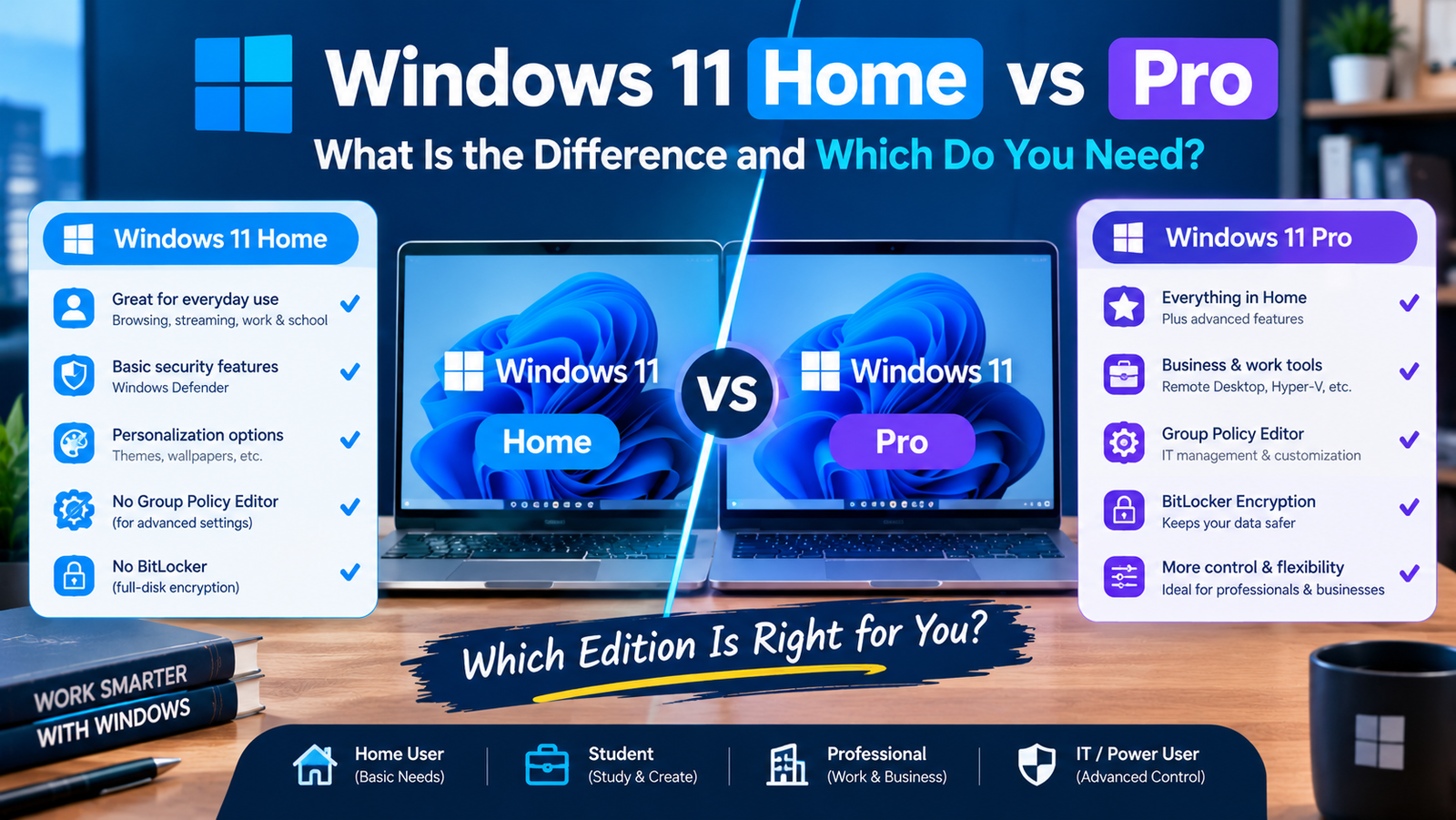
The difference between Windows 11 Home and Pro is that Pro adds security and management tools on top of everything in Home: full BitLocker encryption, the ability to host Remote Desktop sessions, Hyper-V virtual machines, Windows Sandbox, Group Policy and the option to join a company network. Speed, gaming performance, apps and the interface are identical.
So the choice comes down to whether you will use those extras. Most home users will not. Here is the comparison in full.
Windows 11 Home vs Pro: Feature Comparison Table
| Feature | Windows 11 Home | Windows 11 Pro |
|---|---|---|
| Core experience, apps, Copilot, gaming features | Yes | Yes |
| Windows Security, firewall, Windows Hello, Secure Boot | Yes | Yes |
| Device encryption | Yes, on supported hardware | Yes |
| BitLocker with full controls, including external drives | No | Yes |
| Remote Desktop | Can connect to other PCs only | Can also be controlled remotely |
| Hyper-V virtual machines | No | Yes |
| Windows Sandbox | No | Yes |
| Group Policy Editor | No | Yes |
| Join a work domain or Microsoft Entra ID | No | Yes |
| Kiosk mode (Assigned Access) | No | Yes |
| Maximum memory | 128 GB | 2 TB |
| Processor sockets | 1 | 2 |
| Typical retail price (US) | About $139 | About $199 |
Microsoft keeps its own list on the Windows 11 Home vs Pro comparison page.
What Windows 11 Pro Adds That Home Does Not Have
BitLocker drive encryption
Home includes a simpler feature called device encryption, which switches on automatically on many modern PCs when you sign in with a Microsoft account. Pro gives you full BitLocker: you choose which drives to encrypt, how they unlock and where the recovery key is stored, and you can encrypt USB drives with BitLocker To Go. If you carry sensitive work files on a laptop, this is the strongest reason to pick Pro.
Remote Desktop hosting
Any edition can connect out to another computer. Only Pro can be the computer you connect to. If you want to reach your office PC from home using Microsoft’s built-in tool, the office PC needs Pro. Remote access over the internet should go through a VPN, which we explain in what a VPN is and how it works.
Hyper-V and Windows Sandbox
Hyper-V runs full virtual machines, so you can use Linux or another copy of Windows inside a window. Windows Sandbox is a lightweight, disposable desktop for opening a suspicious file or testing software, and it wipes itself when you close it. Developers, IT students and cautious tinkerers get real value from both.
Group Policy and business management
Group Policy Editor exposes hundreds of settings that Home hides, from blocking specific features to controlling updates. Pro can also join a company domain or Microsoft Entra ID, be managed centrally, and run in kiosk mode for a single app. These exist for IT departments, and most individuals never open them.
Higher hardware limits
Home supports up to 128 GB of memory and one physical processor. Pro supports up to 2 TB and two processors. This matters only for high-end workstations.
What Is Exactly the Same in Windows 11 Home and Pro
- Performance. Pro is not faster. Games, apps and boot times are the same on the same hardware.
- Gaming features such as DirectX 12, Auto HDR and Game Bar.
- Everyday security, including Microsoft Defender antivirus, the firewall and Windows Hello sign-in.
- The interface, Snap layouts, widgets, the Microsoft Store and Copilot. If you are wondering what Copilot covers at work, see what Microsoft 365 Copilot is.
- Updates. Both get the same feature and security updates. Pro simply offers more control over when they install.
How Much Windows 11 Home and Pro Cost and How to Upgrade
Most people never buy Windows separately, because it comes with the PC. Consumer laptops usually ship with Home and business models with Pro. If you are buying a license, Home is about $139 and Pro about $199 in the US.
You can also upgrade an existing Home PC without reinstalling:
- Open Settings and go to System, then Activation.
- Expand Upgrade your edition of Windows.
- Either enter a Pro product key or open the Microsoft Store to buy the upgrade, which is typically $99.
- Restart when prompted. Your files, apps and settings stay in place.
Which Should You Choose: Windows 11 Home or Pro?
Choose Home if you use your PC for browsing, streaming, schoolwork, office apps or gaming. You lose nothing in speed or safety.
Choose Pro if you need to remote into the PC, run virtual machines, encrypt drives with full control, connect to a company network, or your employer requires it.
Not sure? Start with Home. The upgrade takes a few minutes whenever you need it, so there is no penalty for waiting. Engadget reached the same conclusion in its Home vs Pro explainer, noting that Home is the right choice for the vast majority of people.
Frequently Asked Questions About Windows 11 Home and Pro
Is Windows 11 Pro faster than Home?
No. Both editions perform the same on identical hardware.
Is Windows 11 Pro better for gaming?
No. Gaming features and frame rates are the same. The higher memory limit in Pro is irrelevant for games.
Can I go back from Pro to Home?
Not directly. Moving down an edition requires a clean install of Windows 11 Home.
Does Windows 11 Home have BitLocker?
It has device encryption, which uses the same underlying technology with fewer options. Full BitLocker management needs Pro.