
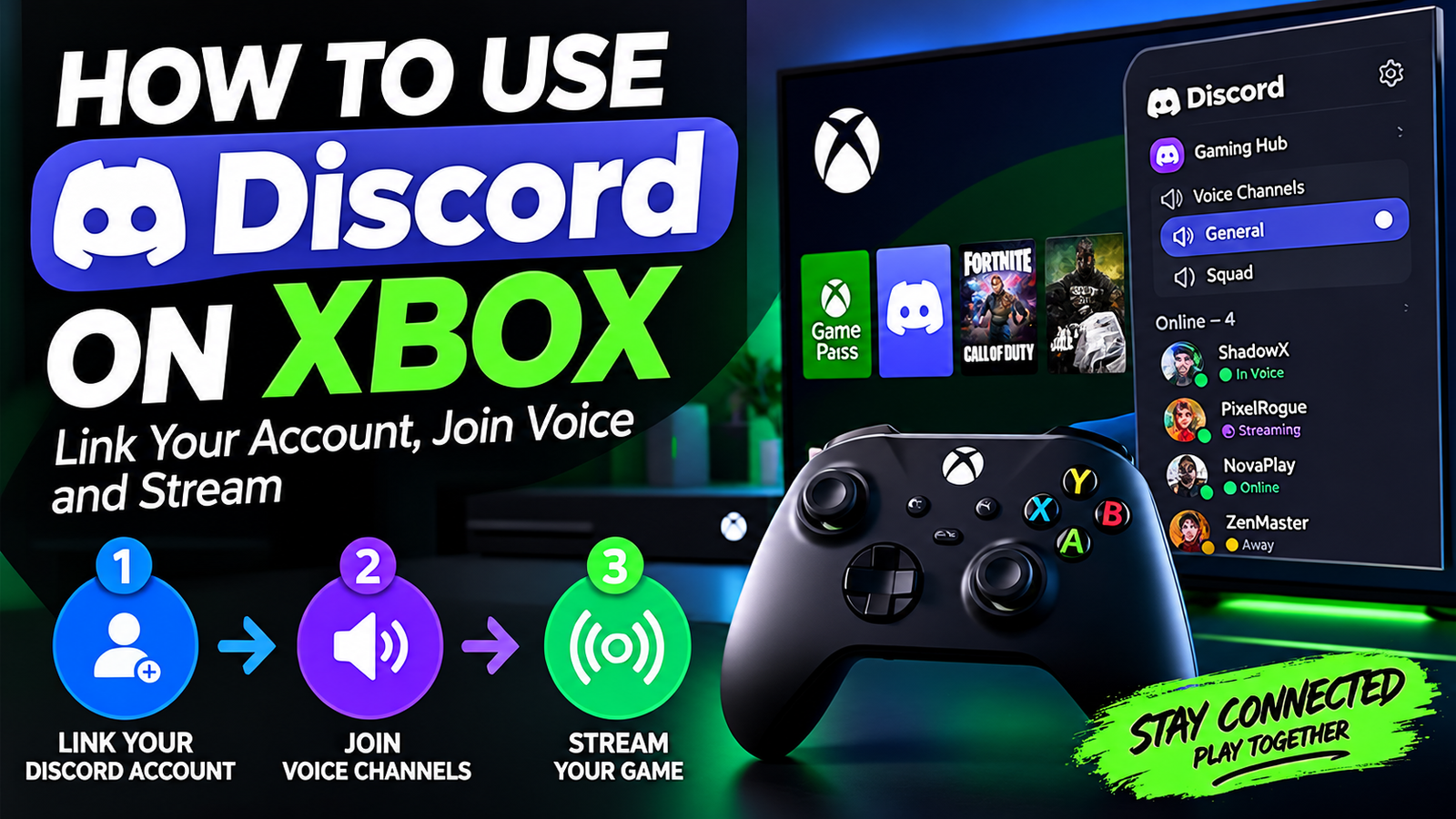
To use Discord on Xbox, link your Discord account to your Xbox account once, then press the Xbox button, open Parties & chats, choose Discord, and pick a server and voice channel. You can talk to friends on PC, phone and PlayStation from your console and stream your game to them, all without a capture card.
It works on Xbox Series X, Series S and Xbox One. The setup takes about two minutes. Here is each step, plus what Discord on Xbox cannot do.
Step 1: Link Your Discord Account to Your Xbox Account
You only need to do this once. Pick whichever method is easiest.
From the Xbox console
- Press the Xbox button to open the guide.
- Go to Profile & system, then Settings, Account, Linked social accounts.
- Select the Discord tile and follow the prompts. You will be shown a QR code or a short code to enter on your phone or computer.
From the Discord app on your phone or computer
- Open User Settings and select Connections.
- Choose the Xbox icon.
- Sign in with the Microsoft account you use on your console and authorize the connection.
Make sure it is the same Microsoft account that is signed in on the Xbox. Linking the wrong one is the most common reason Discord does not show up later.
Step 2: How to Use Discord on Xbox to Join a Voice Channel
- Press the Xbox button.
- Go to Parties & chats.
- Select Discord.
- Choose one of your servers.
- Choose a voice channel to join it.
Your Discord voice chat now runs through your Xbox headset. From the same panel you can mute yourself, adjust how loud each person is and leave the channel. You can keep playing while the guide is closed.
How to Move a Discord Call From Your Phone or PC to Xbox
If you are already in a call on another device, you can hand it over to the console.
- From your phone: join the voice channel in the Discord app, swipe up to open the voice controls and tap Join on Xbox. The Xbox app needs to be installed on the same phone.
- From a computer: join the voice channel, click the icon showing a phone and a controller, choose Transfer Voice to Xbox, and scan the QR code with your phone.
How to Stream Your Xbox Game to Discord
- Join a Discord voice channel on your Xbox using the steps above.
- Open Parties & chats and select Discord again.
- Choose Stream your game.
- Press Start stream.
Everyone in the channel can then watch your gameplay. Higher resolutions and frame rates need a Discord Nitro subscription, and 60 frames per second is not available when streaming from an Xbox One.
What Discord on Xbox Can and Cannot Do
| Feature | Works on Xbox? |
|---|---|
| Join server voice channels | Yes |
| Voice calls from direct messages and group chats | Yes, by transferring the call from your phone or PC |
| Stream your game to a voice channel | Yes |
| Read or send text messages | No |
| Video calls | No |
| Use Discord voice and Xbox party chat together | No, only one at a time |
| Stream apps such as Netflix or the dashboard | No, games only |
These limits come from Discord’s own Discord and Xbox Connection FAQ. For text chat, keep the Discord app open on your phone beside you.
Discord Not Working on Xbox? Fixes for the Common Problems
Discord does not appear under Parties & chats
Check that the accounts are linked, and that the Xbox is signed in to the Microsoft account you linked. Install any pending console update, since the feature depends on recent system software.
You are asked to link your account again
Discord occasionally asks for the connection to be renewed. Unlink the Xbox connection in Discord’s Connections settings, then link it again.
You can hear nobody, or nobody can hear you
Leave any Xbox party first, because the two voice systems cannot run together. Then check that your headset is set as the audio device and that you are not muted in the Discord panel.
You cannot join because of privacy settings
On the console, open your Xbox privacy settings and allow communication outside of Xbox with voice and text. Child accounts need a parent to change this from the family settings.
The stream option is missing
You must be in a server voice channel, and you must be in a game. Apps cannot be streamed.
Frequently Asked Questions About Discord on Xbox
Is there a Discord app for Xbox?
No separate app is needed. Discord voice is built into the Xbox guide under Parties & chats once your accounts are linked.
Do I need Discord Nitro to use Discord on Xbox?
No. Voice chat and standard streaming are free. Nitro only raises the stream quality.
Do I need Xbox Game Pass to use Discord on Xbox?
No. Discord voice does not require a Game Pass subscription.
Can I talk to PlayStation and PC players through Discord on Xbox?
Yes. Anyone in the same Discord voice channel can hear you, whatever device they are on. That makes it handy for cross-platform games.
More gaming guides: how to join a Blooket game with a code and Cyberpunk 2077 endings explained.