
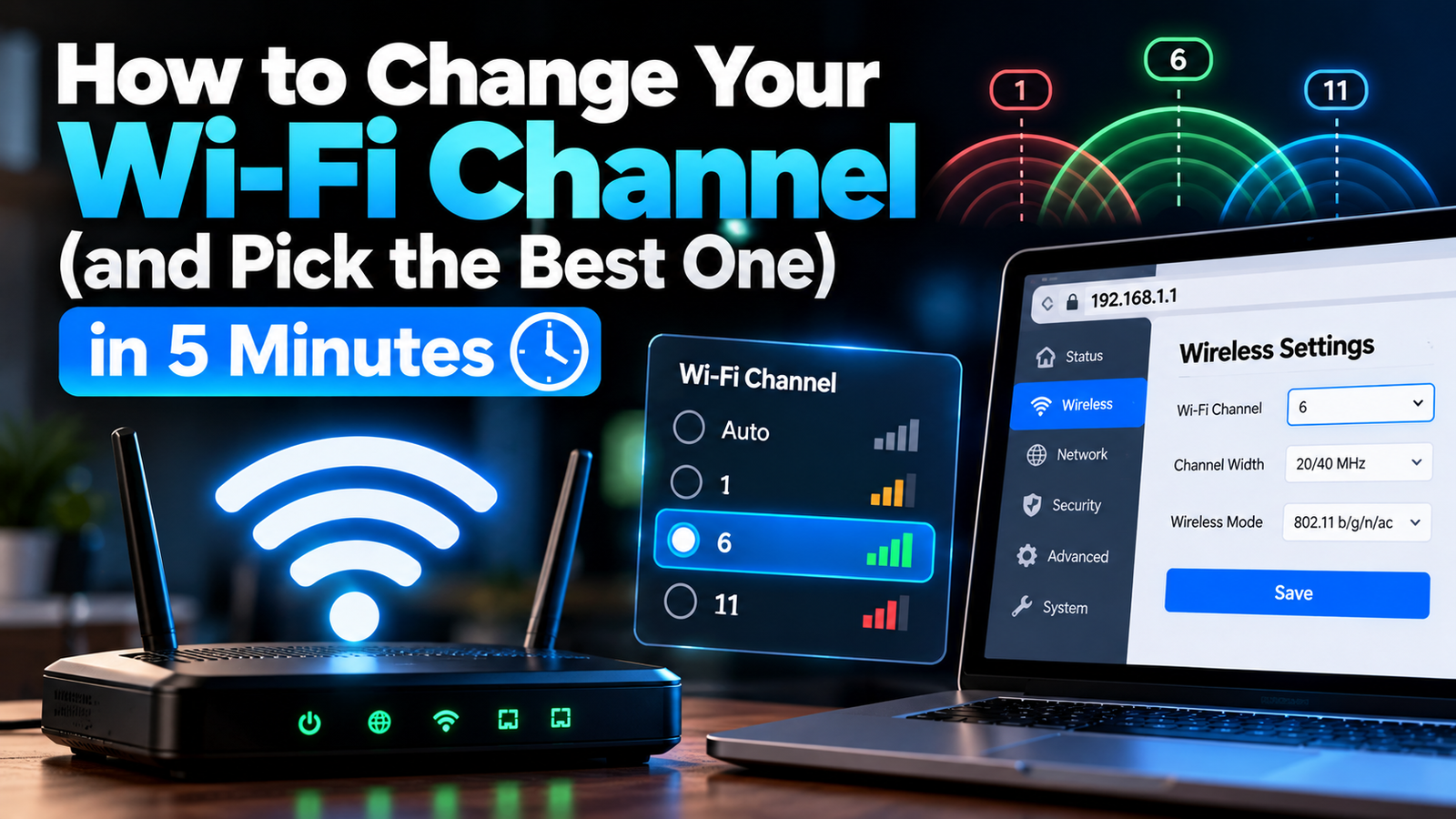
To change your Wi-Fi channel, log in to your router’s admin page (usually 192.168.0.1 or 192.168.1.1) or open its mobile app, go to the Wireless or Wi-Fi settings, switch the channel from Auto to a specific channel, and save. On the 2.4 GHz band, pick channel 1, 6 or 11. On 5 GHz, channels 36-48 or 149-165 are good starting points.
Changing channels is one of the quickest free fixes for slow or unstable Wi-Fi, especially in apartments where dozens of networks overlap. Here is how to do it on any router and how to choose the right channel instead of guessing.
Why Changing Your Wi-Fi Channel Helps
Wi-Fi bands are split into channels, like lanes on a road. When your neighbours’ routers use the same or overlapping channels, they compete for airtime, which causes slower speeds, buffering and dropouts. Moving to a quieter channel gives your network more room. Most routers choose channels automatically, but “Auto” does not always pick well, and it may not re-check after setup.
Step 1: Find Your Router’s Login Address
- Look at the sticker on the bottom or back of the router. It usually lists the login address, username and default password.
- Windows: open Command Prompt, type ipconfig and look for Default Gateway.
- Mac: System Settings > Network > Wi-Fi > Details > TCP/IP, then check Router.
- Common addresses: 192.168.0.1, 192.168.1.1, 10.0.0.1 or 192.168.1.254.
Mesh systems such as eero, Google Nest Wifi, Deco and Orbi are usually managed only through their apps.
Step 2: Change the Channel in Your Router Settings
- Type the gateway address into your browser and sign in.
- Open Wireless, Wi-Fi, WLAN or Advanced Wireless settings.
- Select the band you want to change (2.4 GHz or 5 GHz). If your router uses one combined network name (“smart connect” or “band steering”), you may need to split the bands to set channels separately.
- Change Channel from Auto to a specific number.
- Click Save or Apply. Your devices will disconnect briefly and reconnect.
Where the setting usually lives by brand
| Router brand | Typical path |
|---|---|
| TP-Link | Advanced > Wireless > Wireless Settings |
| Netgear | Settings > Wireless (or Advanced > Advanced Setup > Wireless Settings) |
| ASUS | Advanced Settings > Wireless > General |
| Linksys | Wi-Fi Settings > Advanced |
| ISP gateways (Xfinity, Spectrum, AT&T) | Provider app or gateway admin page under Wi-Fi or Advanced settings |
Menu names vary by firmware version, so look for anything labelled Wireless or Channel.
Step 3: Choose the Best Wi-Fi Channel
Best 2.4 GHz channels: 1, 6 or 11
In the US, the 2.4 GHz band has 11 channels, but they overlap heavily. Only 1, 6 and 11 do not overlap each other, so always choose one of those and keep channel width at 20 MHz on 2.4 GHz for the best stability. The overlap is shown clearly in this list of WLAN channels.
Best 5 GHz channels
5 GHz has many more non-overlapping channels and less congestion. Channels 36-48 and 149-165 are good choices. Channels 52-144 are DFS channels shared with radar; they are often quiet, but the router must switch away if it detects radar, which can cause brief drops.
6 GHz (Wi-Fi 6E and Wi-Fi 7)
If your router and devices support 6 GHz, it is usually the cleanest band of all, and Auto works well there.
How to See Which Channels Are Crowded
- Windows: run netsh wlan show networks mode=bssid in Command Prompt to list nearby networks and their channels.
- Mac: hold Option, click the Wi-Fi icon, choose Open Wireless Diagnostics, then use Window > Scan to see channel recommendations.
- Android: a Wi-Fi analyzer app shows a live graph of nearby networks by channel.
- Router: some routers show a site survey or channel scan in their settings.
Pick the channel with the fewest and weakest neighbouring networks, then test your speed before and after. Our guide on how to check Wi-Fi speed explains how to test accurately.
Still Slow After Changing Channels?
- Move the router to a central, raised position.
- Update the router firmware.
- Use 5 GHz for nearby devices and leave 2.4 GHz for distant or smart home gadgets.
- Check for VPN slowdowns; our WireGuard vs OpenVPN speed comparison explains why protocol choice matters.
- Consider a mesh system for larger homes.
Wi-Fi Channel FAQ
What is the best Wi-Fi channel?
On 2.4 GHz, use 1, 6 or 11, whichever is least crowded. On 5 GHz, try 36-48 or 149-165.
Should I leave my Wi-Fi channel on Auto?
Auto is fine for most homes, but if you have slowdowns in a busy building, a manual channel based on a scan often performs better.
Does changing the Wi-Fi channel disconnect devices?
Yes, briefly. Devices reconnect automatically within a few seconds because the network name and password stay the same.
Can I change the Wi-Fi channel from my phone?
Yes, if your router has an app or you open its admin page in your phone’s browser while connected to the Wi-Fi.